Accept your invite and set up your account
Open your invitation link, create a password, answer four setup questions, and sign in from then on at tetherlines.com/login.
TetherLines is invite-only right now, so every account starts with an email. Whether you are opening a new account or joining a team, the path is the same: open the link, create a password, answer a few setup questions, and you are on your Dashboard.
What arrives
Your invitation is an email with a secure sign-in link. Select it; it opens in your browser and signs you in for the first time, showing Completing sign in... for a moment.
Links do expire. If the page says yours has, enter the email address the invitation was sent to and select Send me a new link.
Complete your account
- On the Complete your account page, enter your First name and Last name.
- Enter a Password of at least 8 characters, then type it again under Confirm password.
- Check I agree to the Terms of Service and Privacy Policy.
- Select Set password & continue. The button stays inactive until the box is checked.
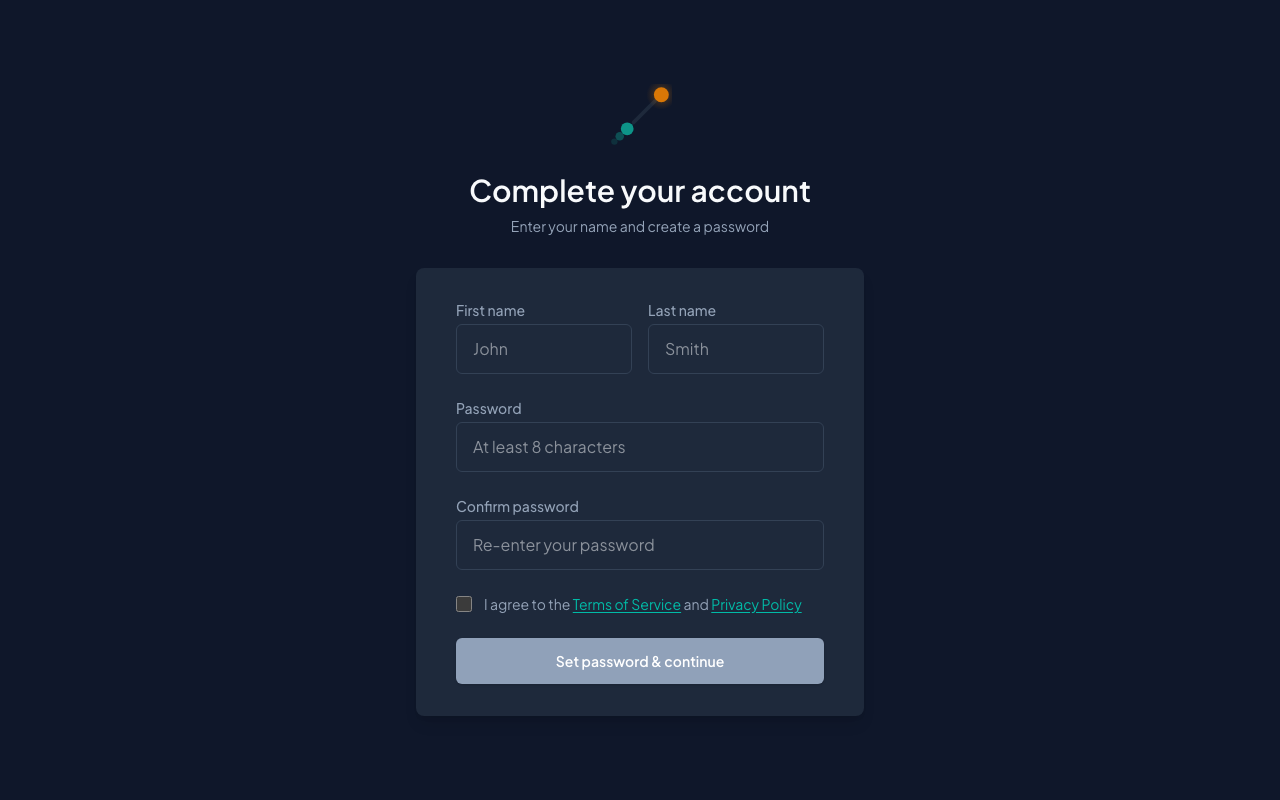 The Complete your account form the invite link opens: your name, a password, and the terms checkbox
Set up your account
The next page is headed Welcome to TetherLines; the line beneath it, Let's set up your account (1/4), counts the steps:
- How do you work? Choose Solo Agent, Team Leader, or Team Member, then select Continue.
- Answer What's your business name? if you chose Solo Agent, or What's your team name? if you chose a team, then select Continue. Below the name, Your dashboard motto is optional; leave it blank to keep the default.
- What brokerage are you with? Start typing in Search for your brokerage... and pick the match, or select I'm independent if you have no brokerage affiliation. If your brokerage is not listed, the search results offer to add it.
- Set your annual targets. Enter an Annual GCI target, your gross commission income goal for the year, and a Weekly conversations target. These power the progress rings and pace tracking on your Dashboard. Select Get Started to finish.
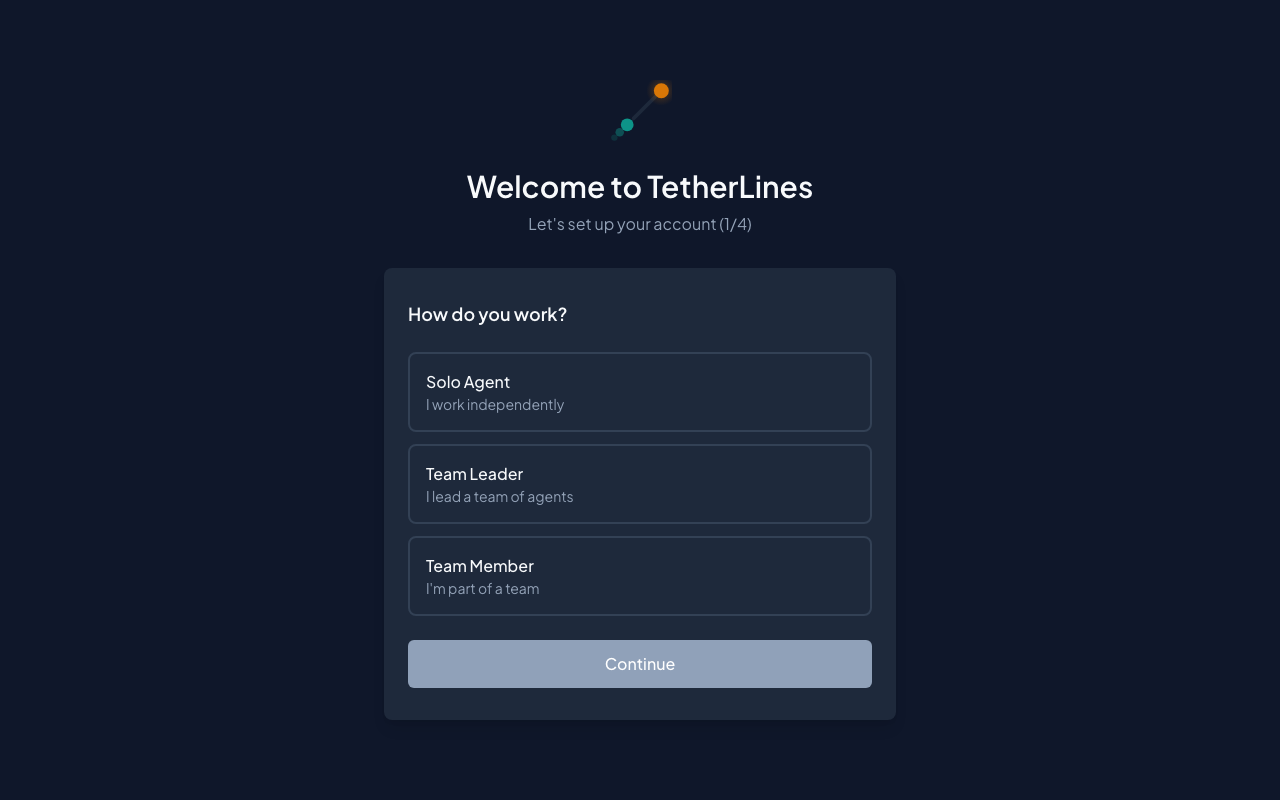 Account setup, step 1 of 4: choose how you work
Rough numbers are fine. To change them later, see Set goals and track your pace.
Invited to a team? Your team name and brokerage arrive with the invitation, so you land directly on step 4 and only enter your targets. If the invitation did not include a brokerage, you start at step 2 instead. There your team name is already filled in, marked Pre-filled from your team invitation, and cannot be edited; choose your brokerage on step 3, then enter your targets.
If you close the browser partway through, signing in again brings you back to the setup wizard.
Your first look at the Dashboard
Get Started opens your Dashboard. On a brand-new account, a Welcome to TetherLines card sits near the top with four links: Set your goals, Add your first contact, Log an appointment, and Record a deal. Work through them in order and the rings begin to fill. The X in its corner dismisses it. For a tour of the page, read Welcome to TetherLines.
Sign in later
Go to tetherlines.com/login. Under Welcome back, enter your Email address and Password, then select Sign in. Use the same email your invitation was sent to.
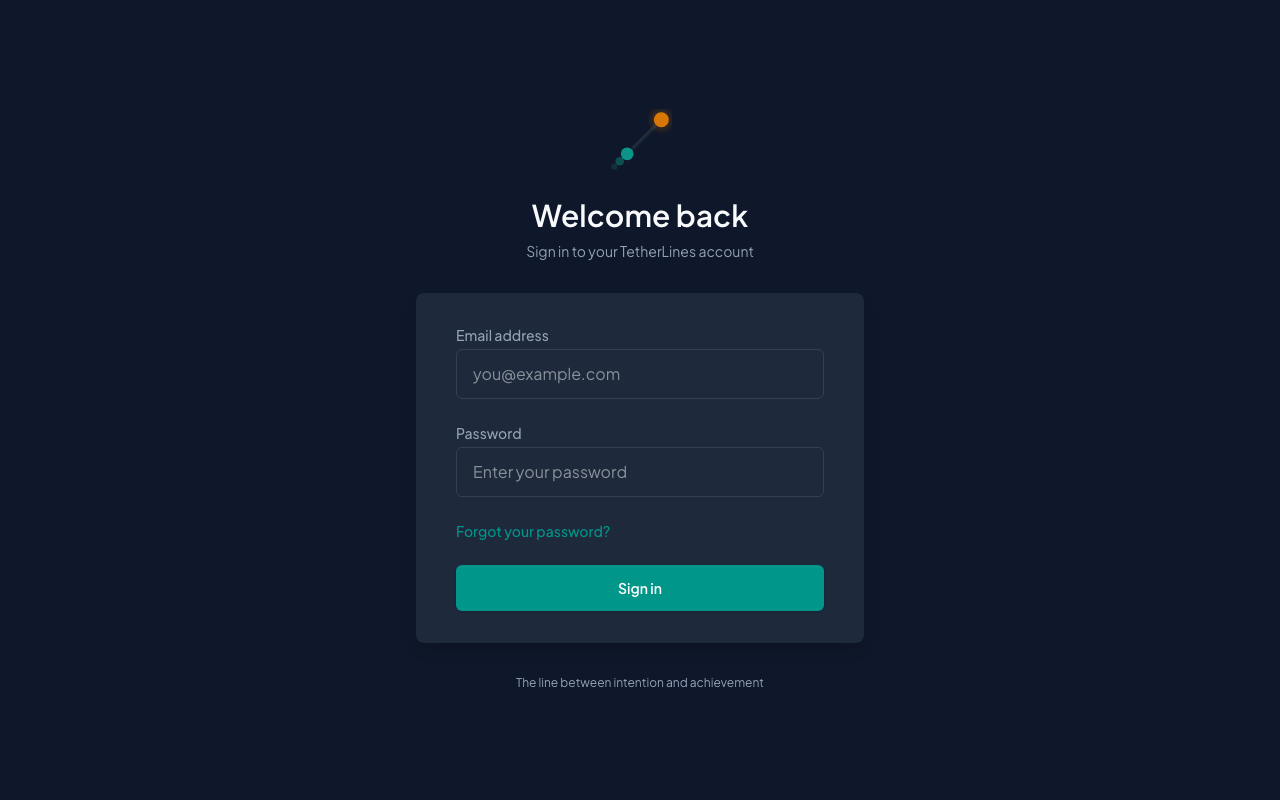 The sign-in page at tetherlines.com/login
Forgot your password
- On the sign-in page, select Forgot your password?.
- On Reset your password, enter your Email address and select Send reset link.
- Open the email and follow the link. On Set new password, enter a New password, type it again under Confirm new password, and submit. The Password updated page offers Go to Dashboard; you are already signed in.
The confirmation page reads Check your email. It reads the same whether or not an account exists for that address, so check the spelling if nothing arrives. Back to login returns you to the sign-in page.
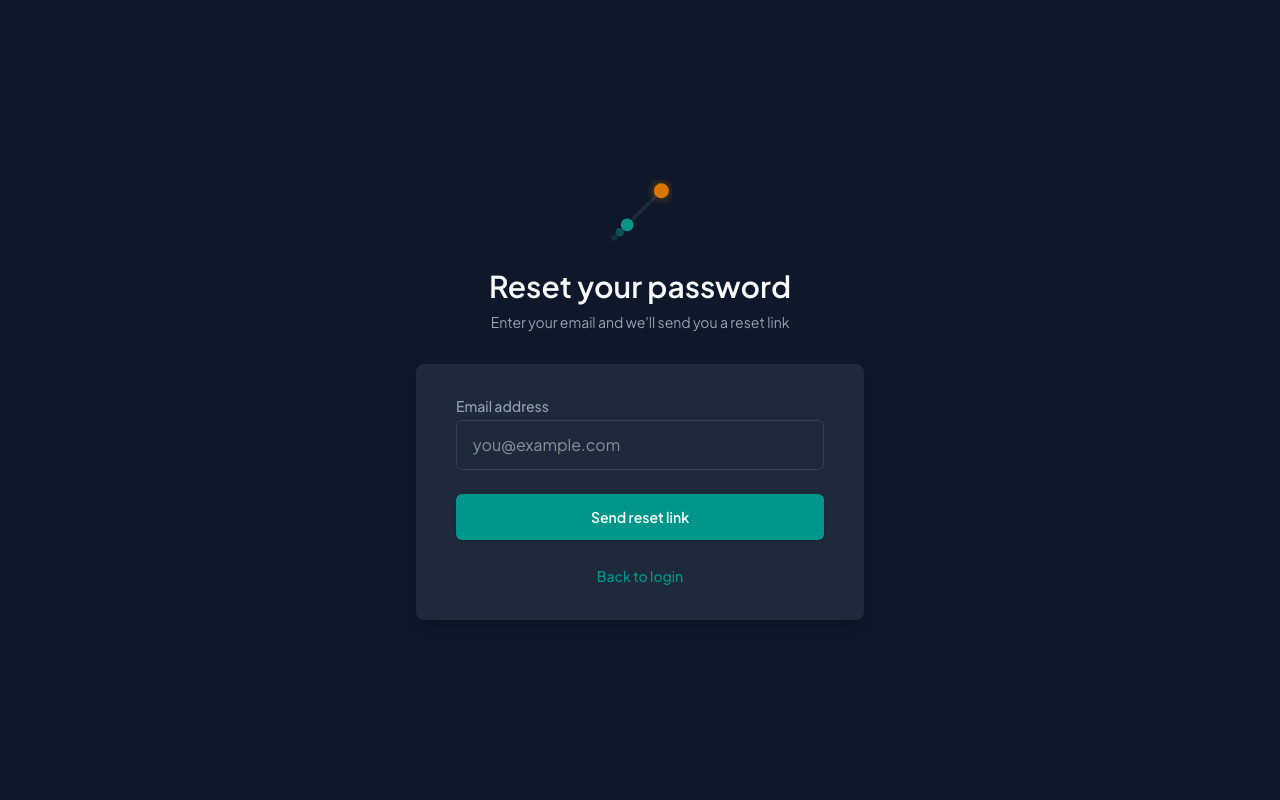 Reset your password: enter your email and select Send reset link
Where to go next
- Set up as a solo agent: your first week if you chose Solo Agent.
- Set up your team: your first week if you chose Team Leader.
- Install TetherLines on your phone so it opens from its own icon and keeps you signed in. Invitation and reset links open in the regular browser; finish there, then sign in inside the app.