Install TetherLines on your phone
Add TetherLines to your home screen on iPhone or Android, sign in inside the app, and turn on task reminders.
TetherLines installs as an app straight from your phone's browser, with no app store step. Installed, it opens full screen from its own icon, keeps you signed in, and on iPhone it is the only way to receive task reminders.
Why install
- It opens full screen with no browser bar.
- It has its own icon on your home screen.
- It stays signed in between visits.
- On iPhone and iPad, push reminders work only from the installed app.
iPhone and iPad
Use Safari for this. Other browsers on iOS cannot add TetherLines to the home screen.
- Open www.tetherlines.com in Safari.
- Tap the Share button.
- Tap Add to Home Screen.
- Tap Add.
The TetherLines icon appears on your home screen.
Android
- Open www.tetherlines.com in Chrome.
- Tap the three-dot menu in the top right.
- Tap Install app. On older versions of Chrome the option reads Add to Home screen.
- Confirm the install.
Chrome may also show an install banner at the bottom of the screen; it leads to the same place.
Sign in inside the app
On iPhone and iPad the installed app keeps its own session, so a sign-in in Safari does not carry over. On Android, if the app opens straight to the Dashboard, you are already signed in.
- Open TetherLines from your home screen.
- On the Welcome back screen, enter your Email address and Password, then tap Sign in.
You land on the Dashboard, and the app keeps you signed in from here on.
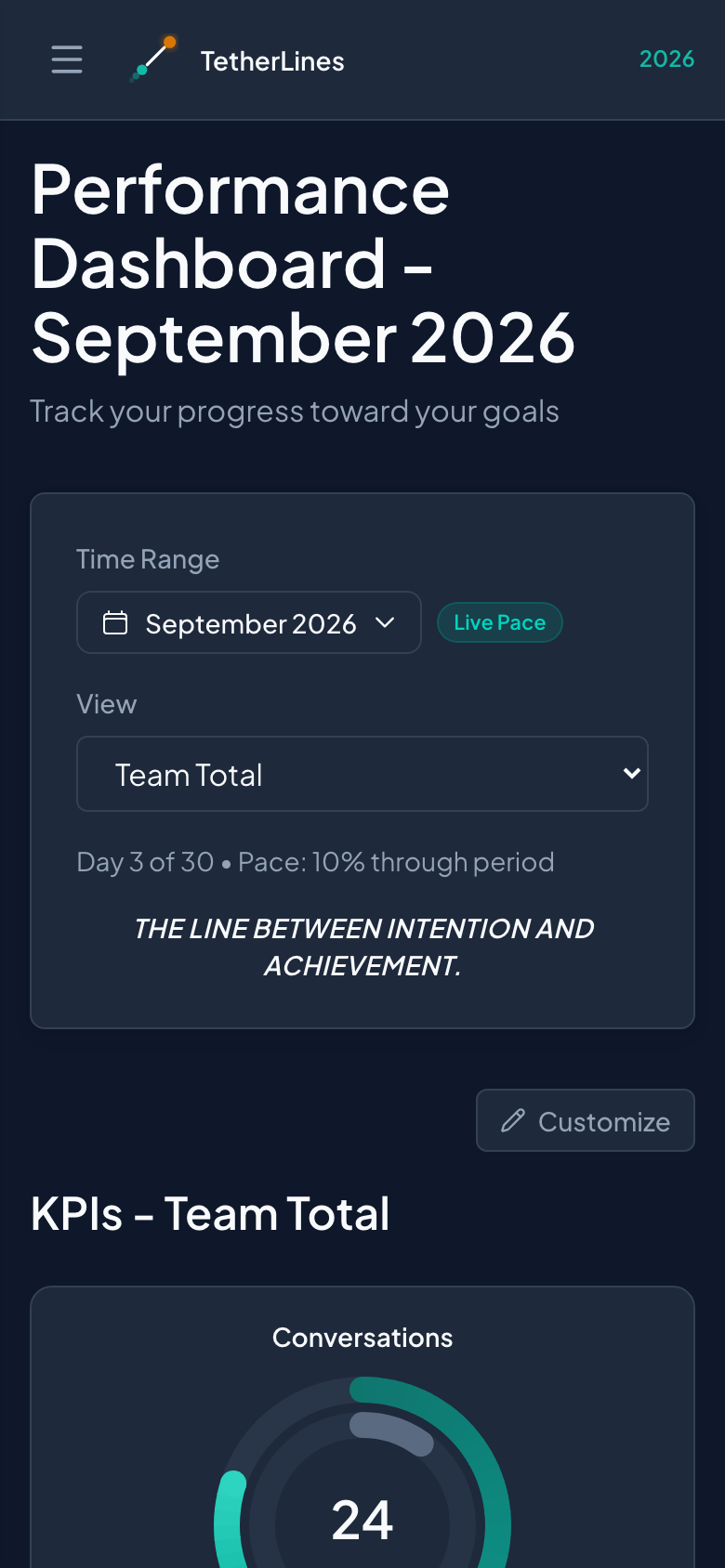 The Dashboard at phone size; installed, it opens full screen with no browser bar
On a phone the sidebar sits behind the menu button in the top left. Tap it to reach every section; Dark Mode or Light Mode at the bottom of the sidebar switches the theme.
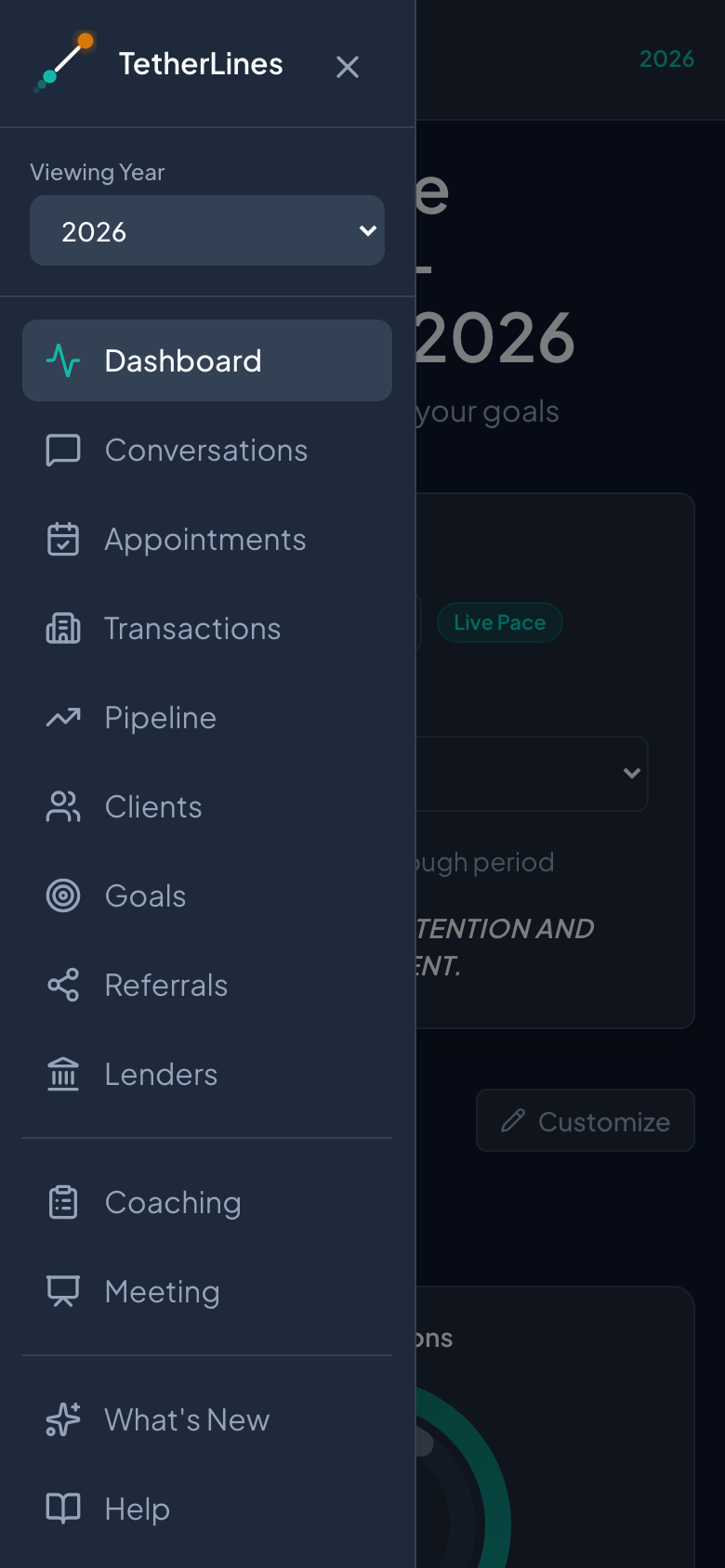 The menu button opens the full sidebar on a phone
Turn on task reminders
Reminders are enrolled per device, so turn them on from inside the installed app on the phone you carry.
- Open the menu and tap Settings.
- Select the Notifications tab.
- In the Task reminders on this device card, tap Turn on reminders.
- When your phone asks whether to allow notifications, allow them.
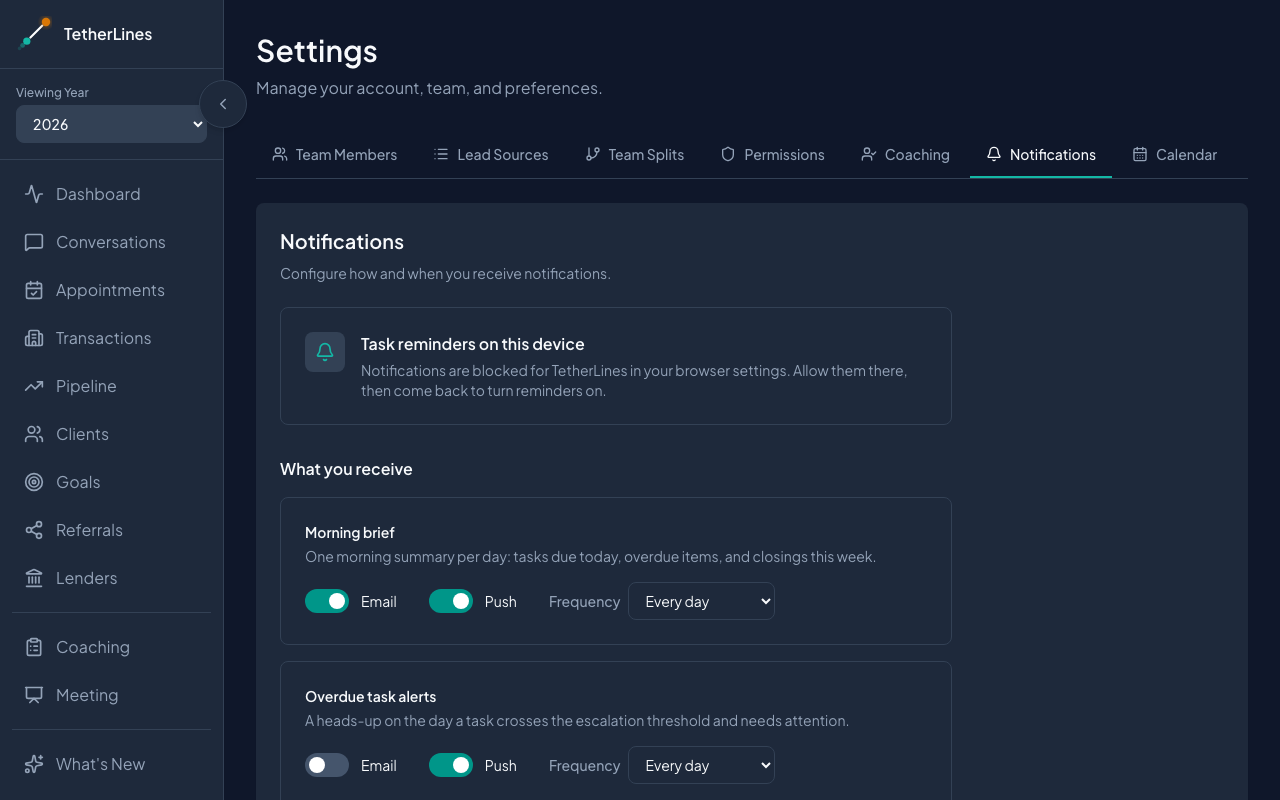 Settings, Notifications: turn on task reminders once the app is installed
A confirmation reads "Task reminders are on for this device." You will get one morning summary on days when transaction tasks are due or overdue, and nothing else. Send test notification checks delivery; Turn off stops reminders on this device.
If you open the Notifications tab in Safari rather than the installed app, the card shows the install steps instead of the button. If notifications are blocked for TetherLines in your phone's settings, the card says so; allow them there, then come back and turn reminders on.
Invitation and reset links open in the browser
Links in invitation and password-reset emails always open in your regular browser, not the installed app. Finish the step there: set your name and password on Complete your account from the invitation, or choose a new password from the reset email. Then open the app from your home screen and sign in with the password you set.
If you do not see an install option
- On iPhone or iPad, the option is in Safari only. Open www.tetherlines.com in Safari and use the Share button.
- On Android, use Chrome. Other browsers may offer a similar option under a different name.
- If TetherLines is already installed, Chrome no longer offers Install app. Look for the icon on your home screen.
Updates arrive automatically
Each time you open the app it loads the current version, so there is nothing to update by hand. If you lose your connection while the app is open, a banner at the top reads "You're offline" and the app catches up on its own once the connection returns. If you open the app with no connection, a You're offline page appears; tap Try again once you are back online to return to the Dashboard.
Where to go next
- Accept your invite and set up your account if you have not signed in yet.
- Lead sources, notifications, and your account for the rest of the Notifications tab.
- Welcome to TetherLines for a tour of the Dashboard.