Lead sources, notifications, and your account
Manage the lead source list, choose which reminders reach you and where, and update your motto, password, and privacy settings.
Open Settings from the bottom of the sidebar. The page is organized into tabs, and this guide covers three of them: Lead Sources, Notifications, and Account.
Lead Sources
Every client and transaction picks a source from this list, and the Dashboard's Transaction Sources table groups your business by it. Everyone on the account sees the list; changing it takes the Manage lead sources permission, which Team Leader and Admin have by default.
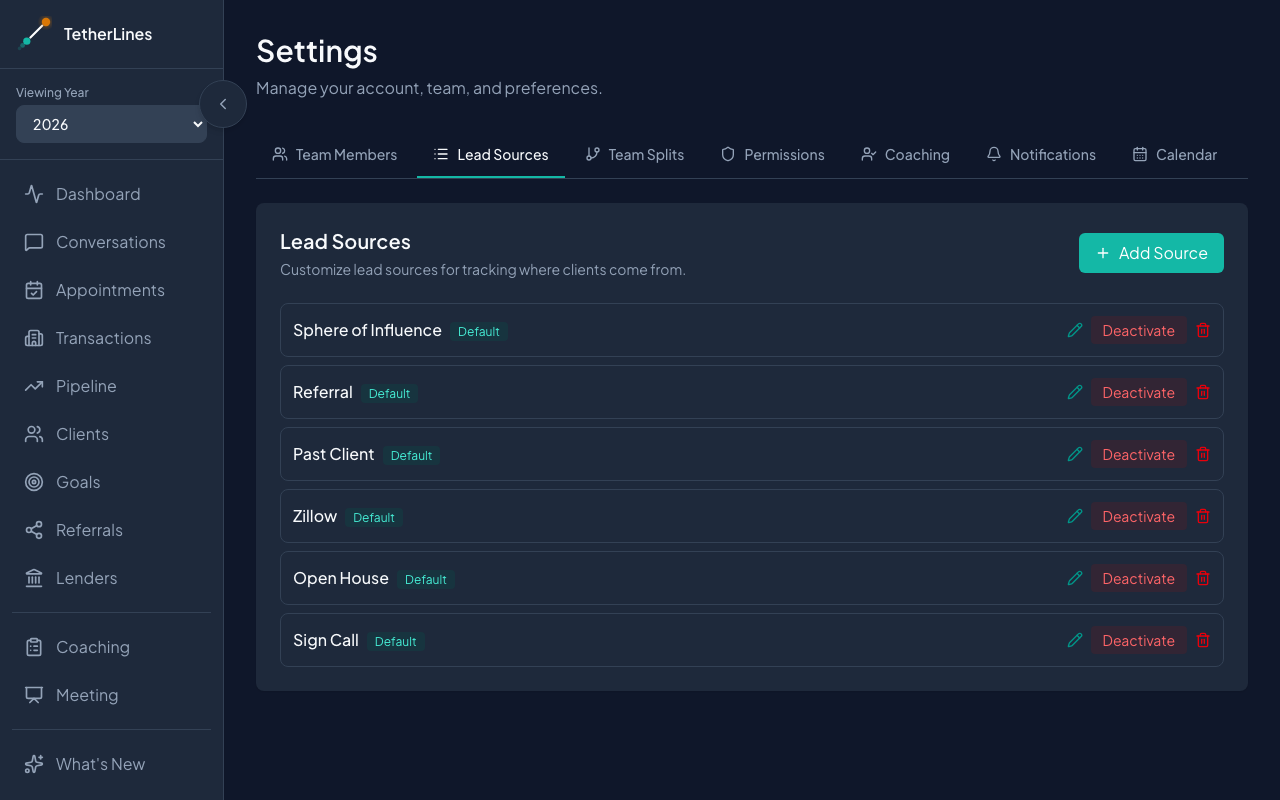 Settings, Lead Sources tab: the list every client and transaction picks a source from
Built-in sources such as Sphere of Influence, Referral, Past Client, and Zillow carry a Default badge. To add your own:
- Open the Lead Sources tab and select Add Source.
- Under Add Custom Lead Source, enter a Source Name *.
- Select Add Source. The new source appears at the end of the list and in every source picker.
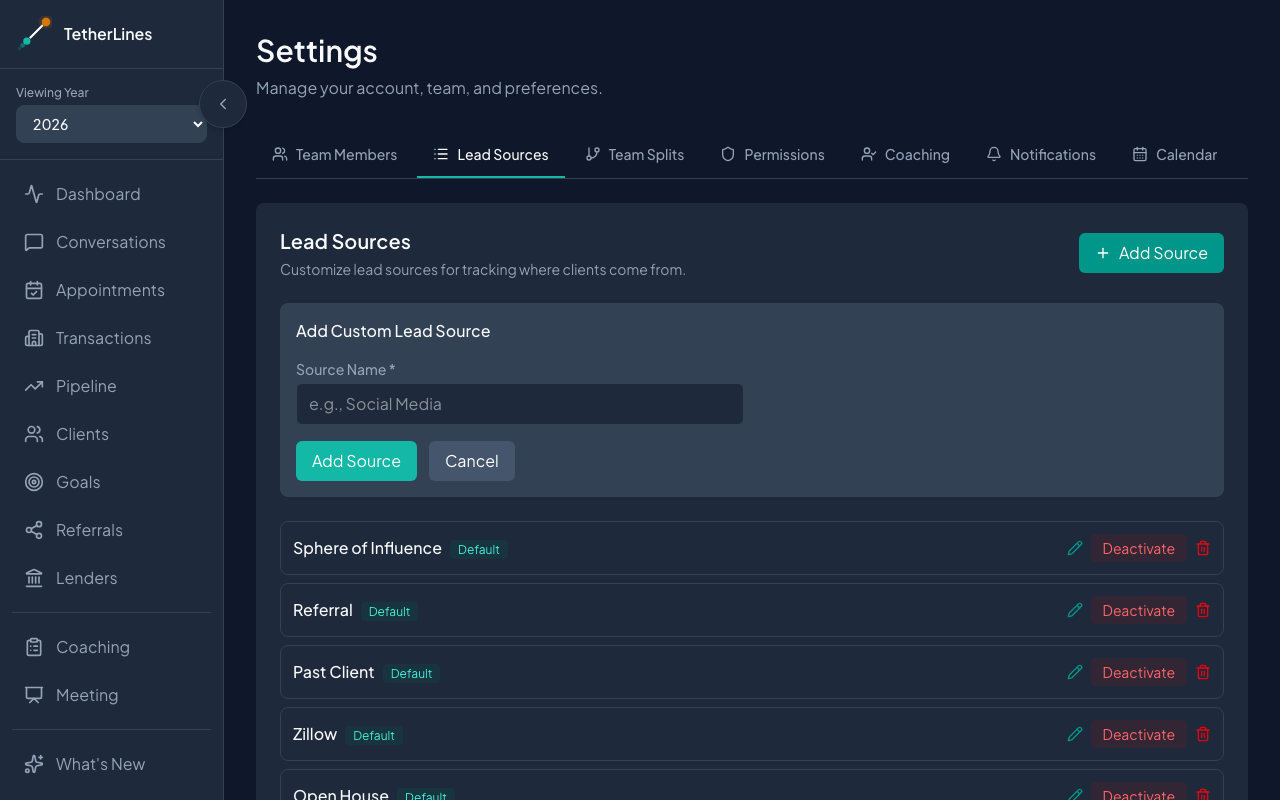 Add Source opens a one-field form for a custom lead source
To rename a source:
- Select the pencil icon (Edit label) on the source.
- Change the name.
- Press Enter or select the check mark (Save). Escape or the X (Cancel) leaves the name as it was.
Each source shows a line under its name saying what it is on — clients, open transactions, closed transactions — or Not in use.
To retire a source, select Deactivate. It disappears from the source pickers on new clients and transactions, and every record already tagged with it keeps its value, so reports and commission splits are untouched. Activate brings it back. This is the right choice for almost every source you stop using.
Delete removes the source row for good, so it is only offered when nothing would be left pointing at it:
- A source that is Not in use deletes after a confirmation.
- A source with clients or open transactions on it asks you where they should go. Choose another active source under Move to and select Move and delete; the clients and open transactions are re-tagged with that source, and each open transaction's commission split is refreshed for it. Nothing is ever cleared to empty.
- A source with a closed, failed, or withdrawn transaction on it cannot be deleted — that history stays as recorded, and the source row is what keeps its label in the Transaction Sources report. Deactivate it instead.
- A source referenced by the team split configuration (a by-lead-source or matrix rule, or the cap's source list) cannot be deleted until that configuration changes.
- An agent's own sphere source (the Name - SOI rows) can be deactivated but never deleted or moved; it is what recognizes that agent's SOI transactions in their commission split.
Who can change the list
One permission governs this tab. Manage lead sources unlocks Add Source, renaming, Deactivate/Activate, Delete, and the usage line under each source; without it the tab shows the same list with no controls to change it. A Team Leader has it, Admin has it by default, and no other role does. The list is shared by the whole account, so a change reaches every team. Adjust it on the Permissions tab — see Set what each role can do.
Notifications
The Notifications tab has two parts.
Task reminders on this device controls whether this browser or phone can receive push reminders. Select Turn on reminders and allow notifications when your browser asks. Each device is enrolled separately, so turn reminders on from every phone and computer you want them on. Once on, Send test notification confirms delivery and Turn off unenrolls the device. If your browser has blocked notifications for TetherLines, the card says so; allow them in your browser settings and come back.
On iPhone and iPad, push reminders work only from the installed app. In Safari the card shows the steps instead:
- Tap Share.
- Choose Add to Home Screen.
- Open TetherLines from your home screen and turn reminders on there.
See Install TetherLines on your phone.
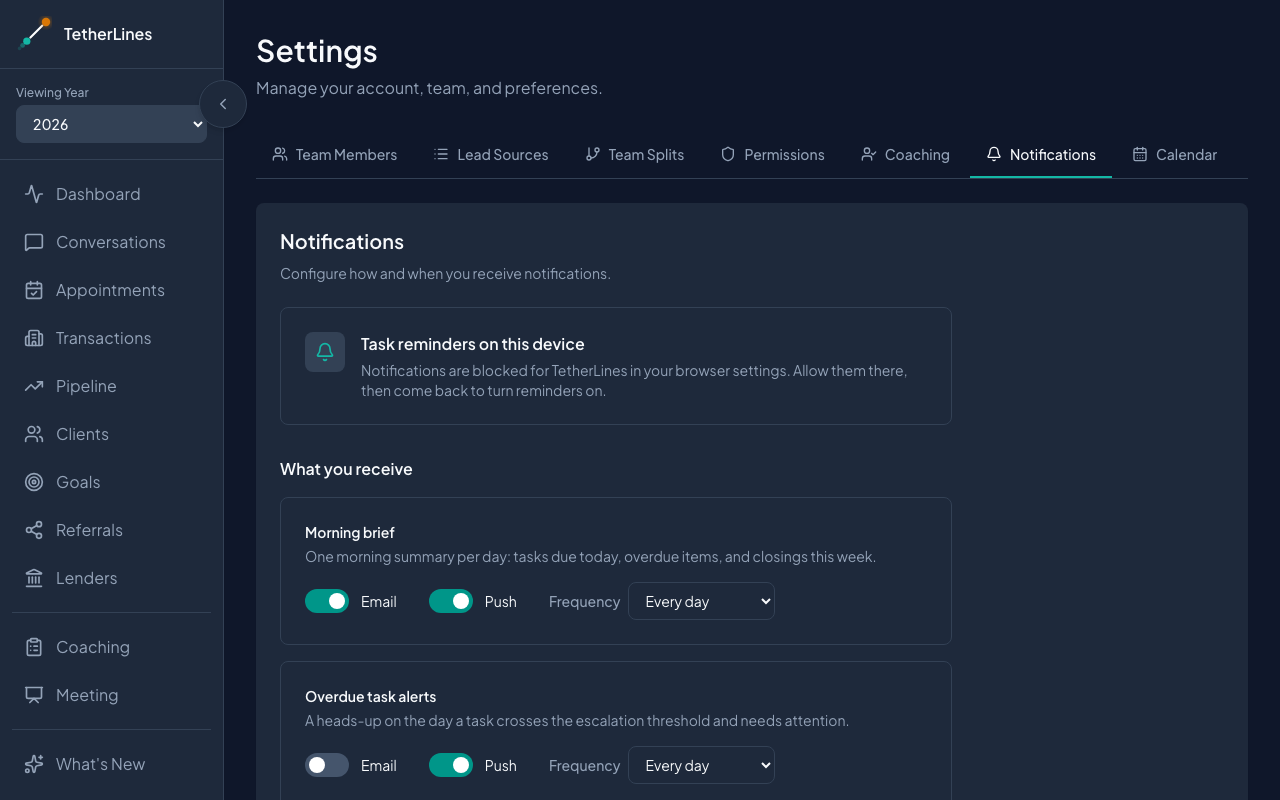 Settings, Notifications tab: task reminders for this device, and what you receive
What you receive lists each notification with Email and Push toggles and a Frequency setting:
- Morning brief: tasks due today, overdue items, and closings this week. Choose Every day or Weekdays only.
- Overdue task alerts: a heads-up on the day a task crosses the escalation threshold.
- Weekly pace snapshot: every Monday, where you stand against pace on your core numbers.
- Notes on your files: when someone else adds a note to a transaction you coordinate. Email only, as it happens.
Toggles save the moment you flip them. Push goes to the devices you enrolled above; email goes to the address on your agent profile.
Account
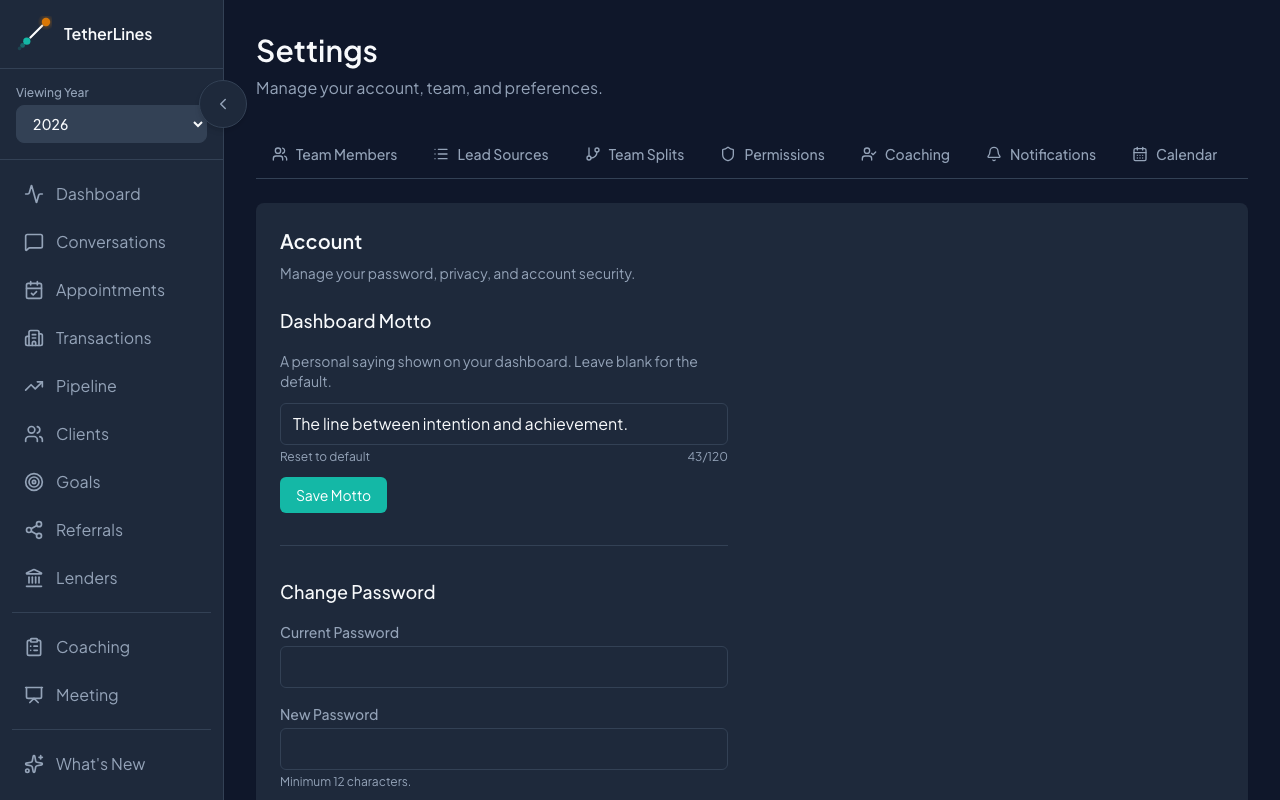 Settings, Account tab: dashboard motto, password, cookie preferences, and account export
Dashboard Motto is the short saying shown on your Dashboard. Type your own, up to 120 characters, and select Save Motto. Reset to default clears it and restores the standard line.
Change Password asks for your Current Password, a New Password, and Confirm New Password, then Update Password. The new password needs at least 12 characters, and one that has appeared in a public data breach is declined.
Cookie Preferences has one switch, Analytics cookies. On, TetherLines collects usage data to improve the product; off, it collects none. No data is shared with third parties either way.
Team leaders also see Account Data. Export account data downloads a single JSON file with every record in the account, contacts through settings, as it stands right now. Select Download to save it.
Where to go next
- Add a client and tag the source: put your lead sources to work.
- Set what each role can do: review what each role on your team can see and change.
- Install TetherLines on your phone: the step that unlocks push reminders on iPhone.