Add a client and tag the source
Add a new client, mark where they came from, and feed your Dashboard source tracking.
Every client you add can carry a source, so you always know where your business comes from. Adding one takes a few seconds.
Add a client
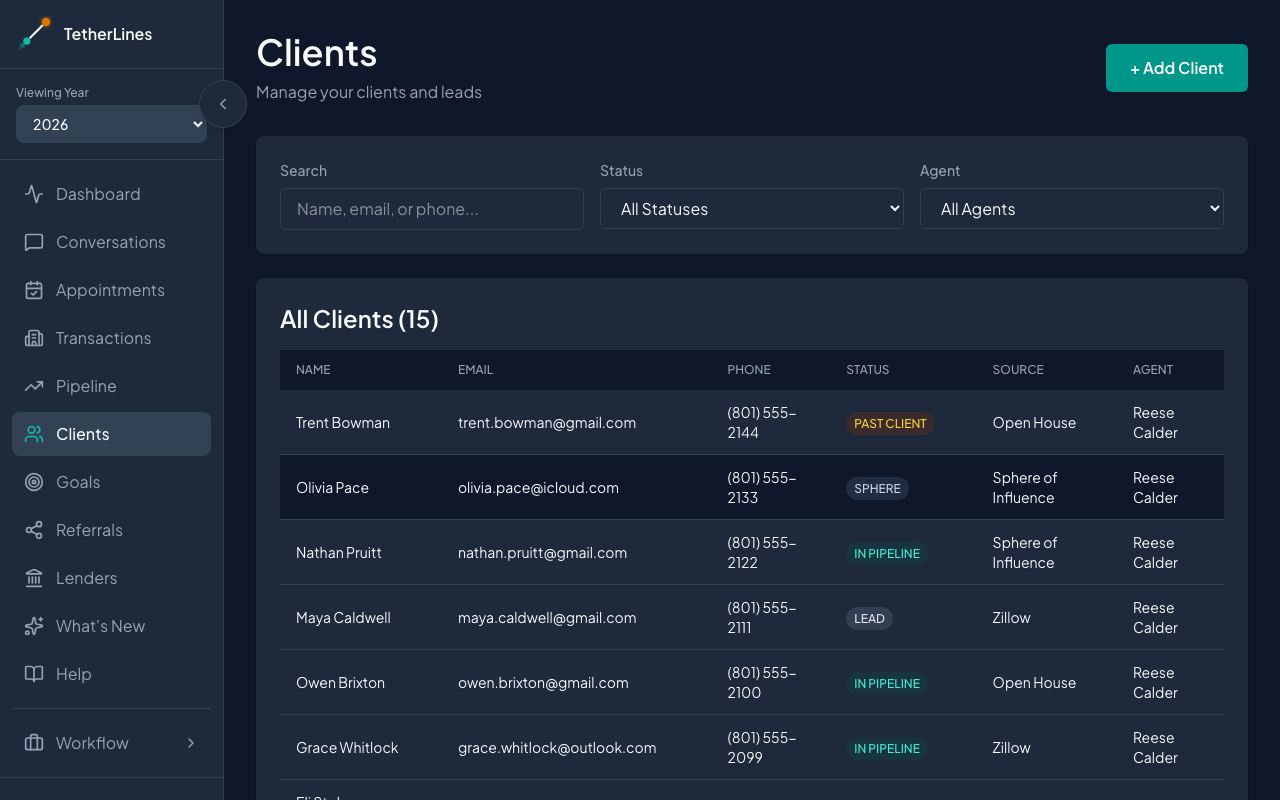 The Clients page lists every client with their status and source.
- Open Clients from the sidebar.
- Click + Add Client. The Add New Client form opens on the page, and the button changes to Cancel in case you want to back out.
- Enter the First Name and Last Name. Both are required.
- Add an Email and Phone if you have them. These are optional, but at least one makes follow-up easier. Address fields are optional too.
- Under Source, select where this client came from (for example, Sphere of Influence, Open House, or Zillow).
- Click Add Client.
You'll see a confirmation, and the new client appears at the top of your list.
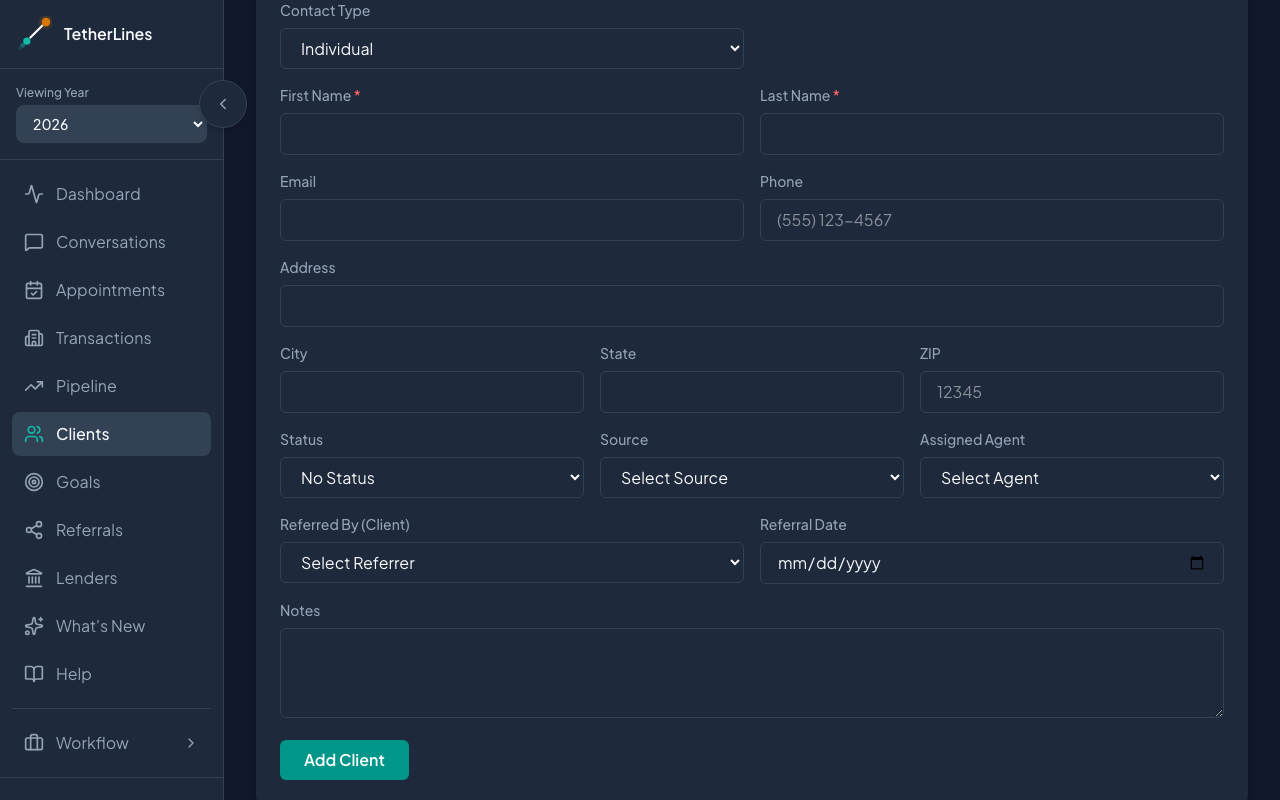 The Add New Client form. Only First Name and Last Name are required.
A few notes
- Required fields: Only First Name and Last Name must be filled in. Everything else can wait.
- Status: In the Add New Client form you can set Status to Sphere or Lead, or leave it as No Status and set it later. Later statuses like In Pipeline and Under Contract update on their own from the client's pipeline activity.
- Trusts, estates, and LLCs: Contact Type defaults to Individual. If the client is an entity, choose Trust, Estate, LLC, or Other Entity — the form then asks for the Entity Name (required) and a representative's name, and you can link an existing client as the representative.
- Referrals: If another client sent this one your way, set Referred By (Client) and the Referral Date. The referral shows on both clients' records.
- Source feeds your Dashboard. When you start a transaction for this client, their Source fills in as the default. The Dashboard's Transaction Sources table rolls up your closed transactions by source, so you can see which channels turn into business.
- Untagged still shows up. Transactions without a source aren't dropped from the Dashboard. They roll up under Unknown / Not Set, so tagging the source keeps that count down and your reporting clear.
- Where sources come from: The Source list is managed under the Lead Sources tab in Settings. If a source you use is missing, add it there and it will show up here — or ask your Team Leader or an Admin, since adding one takes the Manage lead sources permission.
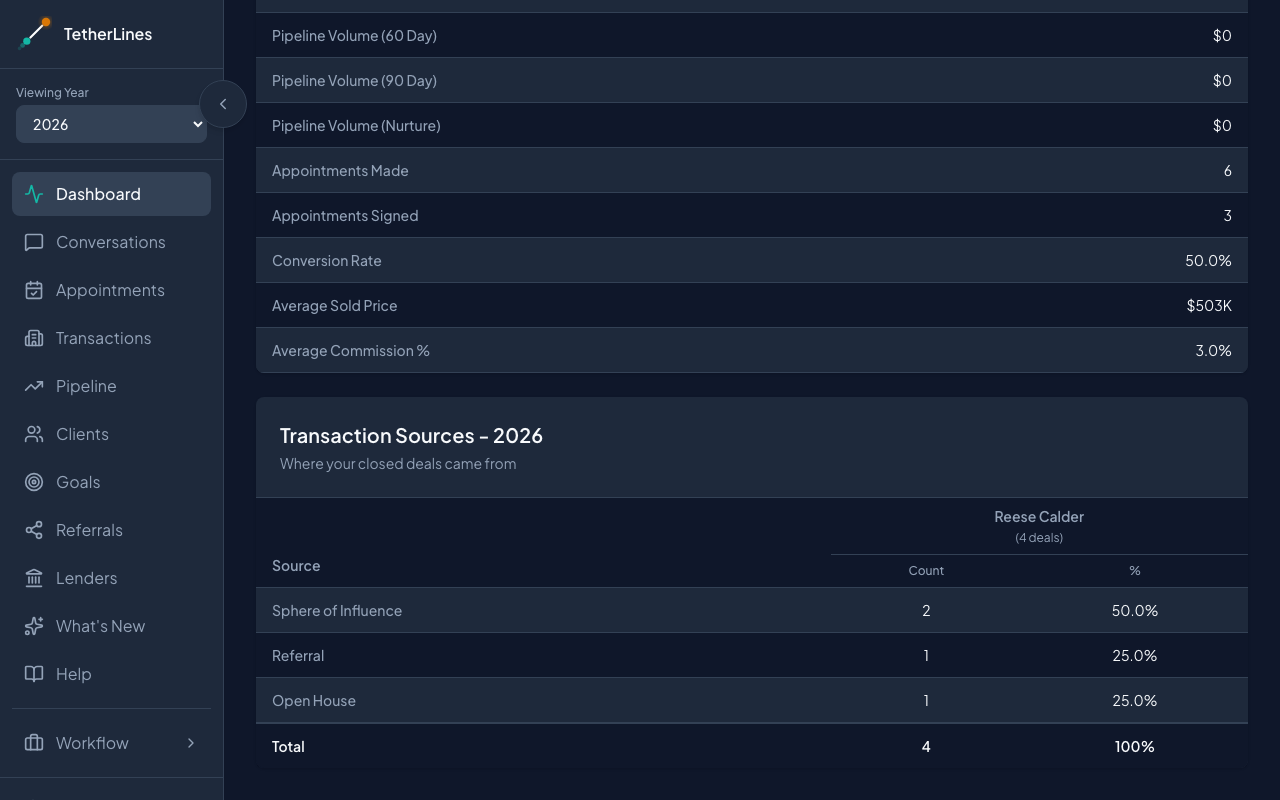 Closed transactions roll up by source in the Transaction Sources table on the Dashboard.