Set what each role can do
Decide which capabilities each role on your team has, from the Permissions tab in Settings.
Each role comes with a sensible set of capabilities. The Permissions tab is where you adjust those defaults for your team.
Who can open the Permissions tab
Only a Team Leader sees the Permissions tab in Settings. The Team Leader role always has every capability and cannot be changed, so it does not appear in the matrix.
How to read the matrix
Open Settings from the sidebar and select the Permissions tab. A line beneath the heading names your team and notes that "These settings apply to your team only." Each column is a role: Admin, Lead Buyer's Agent, Transaction Coordinator, Agent, and ISA. Each row under Capability is one thing a role can do, grouped under Team Management, Data Visibility, and Settings. A teal switch means the role has that capability. A gray switch means it does not.
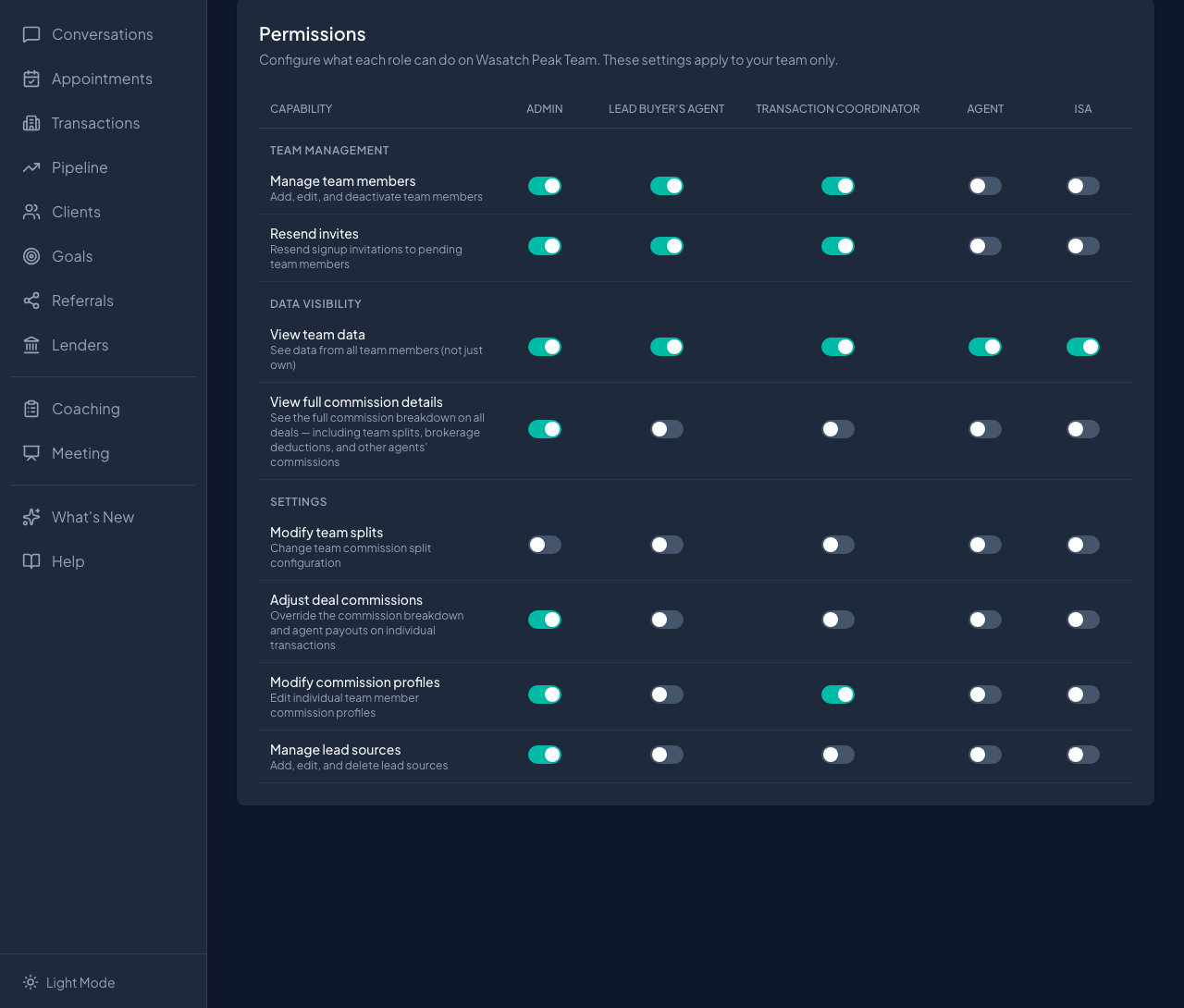 Settings, Permissions tab: one column per role, one row per capability
On a phone, the matrix becomes one card per role with the same switches.
The eight capabilities
- Manage team members: add, edit, and deactivate team members.
- Resend invites: resend signup invitations to members who have not accepted yet.
- View team data: see data from all team members, not only their own.
- View full commission details: see the full commission breakdown on every deal, including team splits, brokerage deductions, and other agents' commissions.
- Modify team splits: change the team commission split configuration.
- Adjust deal commissions: override the commission breakdown and agent payouts on individual transactions.
- Modify commission profiles: edit individual team member commission profiles.
- Manage lead sources: add, rename, deactivate, and delete the account's lead sources on the Lead Sources tab. Without it the tab still shows the list — every role needs it for the source pickers — but none of the controls to change it. Deleting a source also clears the source field on every contact tagged with it.
Defaults per role
| Capability | Admin | Lead Buyer's Agent | Transaction Coordinator | Agent | ISA | |---|---|---|---|---|---| | Manage team members | On | On | On | Off | Off | | Resend invites | On | On | On | Off | Off | | View team data | On | On | On | On | On | | View full commission details | On | Off | Off | Off | Off | | Modify team splits | Off | Off | Off | Off | Off | | Adjust deal commissions | On | Off | Off | Off | Off | | Modify commission profiles | On | Off | On | Off | Off | | Manage lead sources | On | Off | Off | Off | Off |
Team Leader has all eight. Modify team splits is off for every other role, so the split configuration stays with you unless you grant it. Manage lead sources is on for Admin only, so the shared source list stays with you and your admins.
Change a toggle
Select the switch in the row and column you want to change. It flips at once and saves in the background; there is no save button. If a save cannot go through, the switch returns to its previous position and a message tells you the change was not kept.
Reset to defaults
Once a role differs from its defaults, a small circular-arrow control titled Reset to defaults appears beneath that role's column header (on a phone, a Reset link on the role's card). Select it to restore the defaults above. A message confirms, for example "Admin reset to defaults."
Scope: your team only
Permissions apply per team. You configure the roles on your own team, another team leader on the same account configures theirs, and neither can change the other's.
Two practical examples
Keep full commission details in a small circle
By default, only Admin shares your view of the full breakdown. What stays hidden from the other roles is the breakdown itself: team splits, brokerage deductions, and other agents' commissions. If you want that view to be yours alone, turn off View full commission details for Admin, and confirm it is off in the other four columns.
Let a Transaction Coordinator manage team members
Transaction Coordinator has Manage team members and Resend invites on by default, so your TC can add, edit, and deactivate members and resend invites from the Team Members tab. Confirm both switches are on. A TC can assign the Lead Buyer's Agent, Transaction Coordinator, Agent, and ISA roles; assigning Admin stays with you. If you would rather your TC not edit commission profiles, turn off Modify commission profiles in that column.
Where to go next
- Add team members and assign roles for inviting people and choosing a role.
- Configure team splits and commission profiles for where Modify team splits and Modify commission profiles take effect.
- Lead sources, notifications, and your account for managing the lead source list itself.