Configure team splits and commission profiles
Choose how the team leader is paid, then set each member's splits, fees, and brokerage terms.
Team splits tell TetherLines how each deal's commission divides between a team member, the team, and the brokerage. Set them once in Settings, and every transaction's breakdown follows from there.
Where splits fit
On every deal, TetherLines starts with the sale price times the commission rate, applies the side split, and takes off any referral fee. The team split comes next, then the brokerage split and fees. The Team Splits tab holds everything that shapes those last two layers.
Choose the compensation model
- Open Settings from the sidebar and select the Team Splits tab.
- Under Team Leader Compensation Model, answer How does the team leader get paid? by selecting one of two cards:
- I Am The Team: all team commission is your income, and you pay agents from one pool.
- I'm Also An Agent: you earn an agent split on your own deals, and the team share is separate business revenue.
Selecting a card saves it, and a toast confirms Team leader model updated. With I Am The Team, your own row in the table below shows 100% and agent splits do not apply to you.
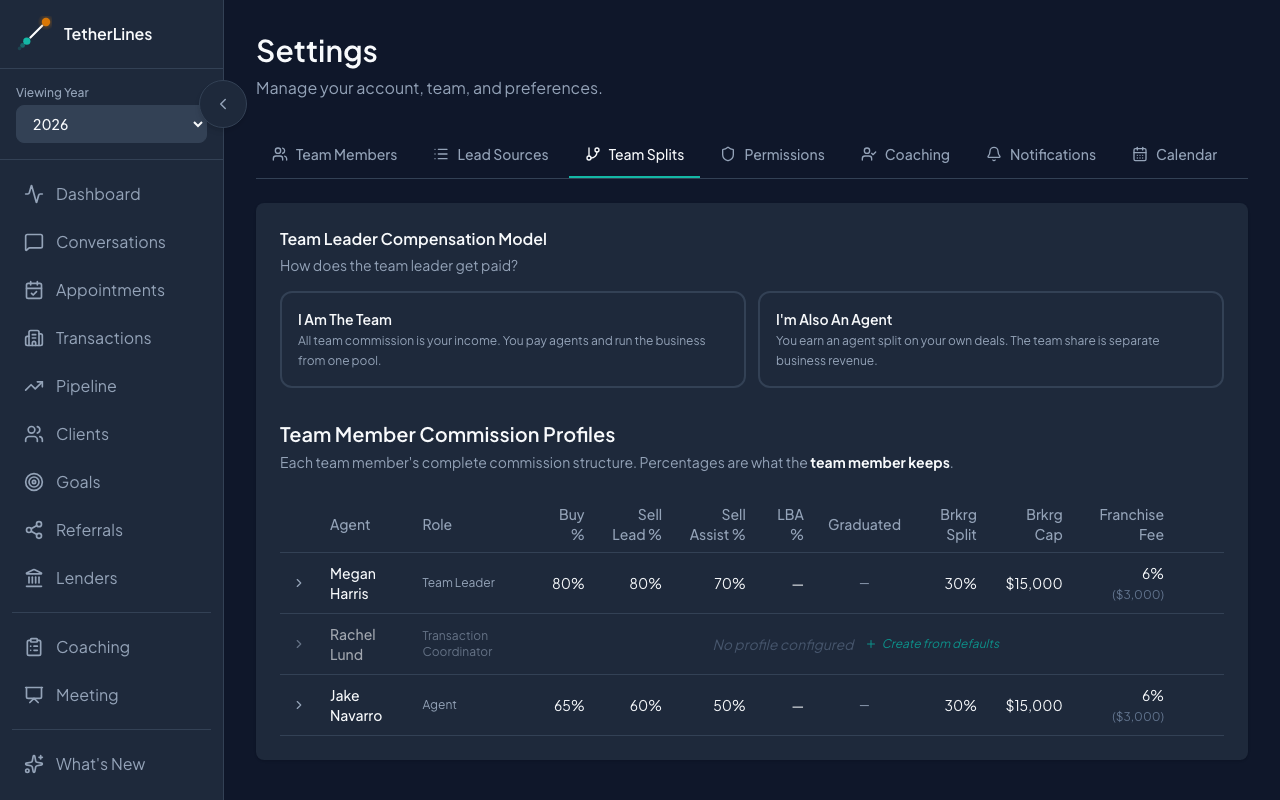 Settings, Team Splits tab: the team leader model on top, then one row per team member
Read the profiles table
Below the model, Team Member Commission Profiles lists one row per member with columns for Agent, Role, Buy %, Sell Lead %, Sell Assist %, LBA %, Graduated, Brkrg Split, Brkrg Cap, and Franchise Fee. Percentages are what the team member keeps, not what the team takes.
A member who has not been set up yet shows No profile configured. Select Create from defaults on that row to start them with your account's default splits.
Edit a member's profile
- Select a row to expand its editor.
- Fill in the sections below.
- Team Splits, headed with the member's name, holds their percentage on each side, Buy Side, Sell (Lead), Sell (Assist), and To LBA.
- Graduated Splits: select Enable graduated splits, then set After # transactions, New Buy %, New Sell %, and a Reset period of Calendar year, Team anniversary, or Rolling 12 months. Only deals tagged with the member's personal SOI lead source count toward the threshold.
- SOI Exception: select Different splits for agent's own sphere to set an SOI Buy % and SOI Sell % for deals from the member's own sphere.
- Dates & Fees: Team Anniversary and a Per-Transaction Fee in dollars.
- Brokerage: Brokerage Split %, Brokerage Cap, Brokerage Anniversary, Franchise Fee %, Franchise Fee Cap, and Franchise Fee Reset, which can be linked with Same as brokerage anniversary.
- Notes / Exceptions: free text for any special arrangement.
- Select Save Changes at the bottom of the editor, or the save icon on the row. The toast tells you how many of that member's open deals were recalculated.
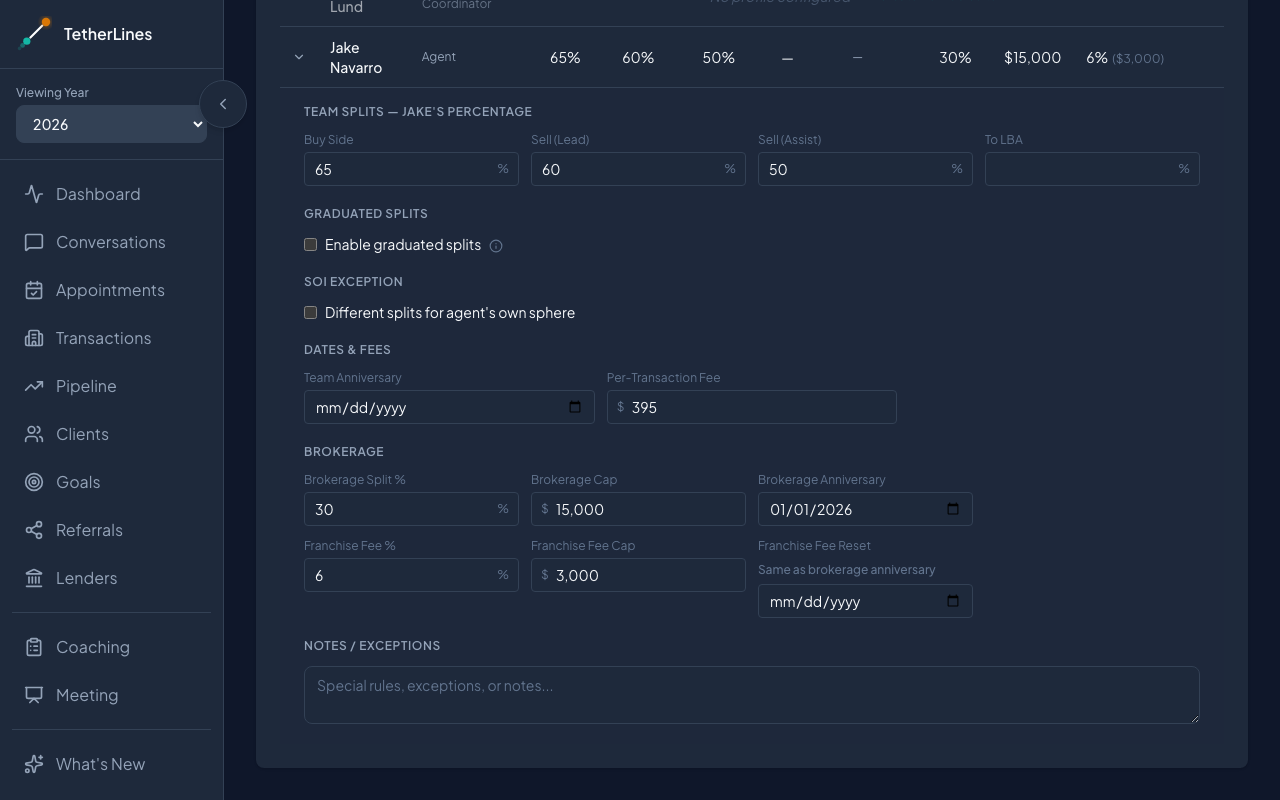 An expanded row: side splits, graduated splits, the SOI exception, fees, and brokerage terms
Who can edit
Two permissions govern this tab, and each governs one half of it. Modify team splits unlocks the compensation model at the top. Modify commission profiles unlocks the Team Member Commission Profiles table below it. A Team Leader has both. By default Admin and Transaction Coordinator have Modify commission profiles without Modify team splits, so they can edit a member's profile while the compensation model stays yours to set. Every other role has neither and reads the tab without editing it. One row is an exception: only a Team Leader can edit a Team Leader's own profile. Adjust these on the Permissions tab — see Set what each role can do.
Solo agents
If you work on your own, the compensation model does not appear and your percentages are 100%. There is nothing to change on this tab.
Where it shows up
Every transaction's commission breakdown uses the profile of the agent on the deal, so the team share, brokerage split, and fees you set here appear on each transaction. The GCI ring on the Dashboard rolls those figures up against your goal. Saving a profile recalculates that member's open deals, so breakdowns stay current.
Where to go next
- Add team members and assign roles if a member is missing from the table.
- Set what each role can do to decide who may edit splits.
- Log a transaction and its commission to see a profile applied to a deal.