Log a transaction and its commission
Add a buy or sell transaction, let the commission calculate from price and percent, and confirm it in the list.
Every closed deal starts as a logged transaction. Once it's in, the commission tracks itself and the totals on your dashboard stay accurate.
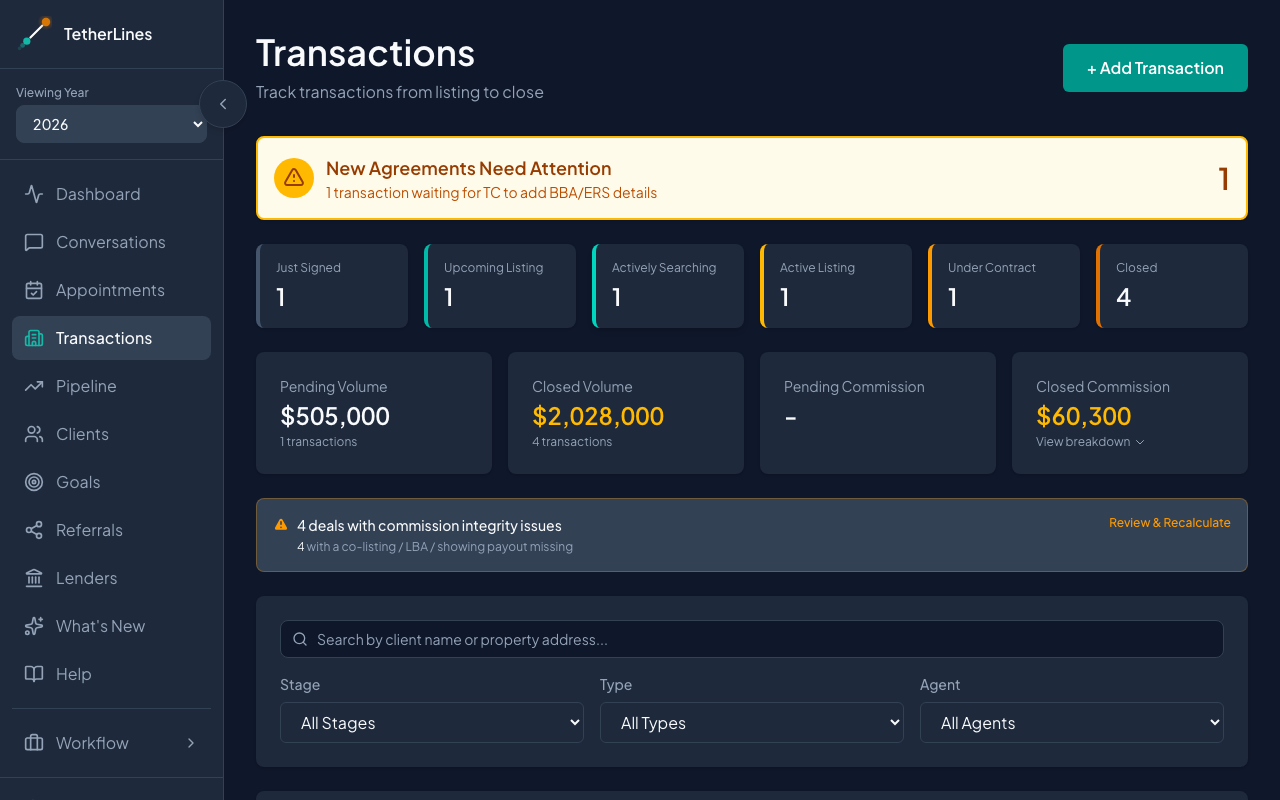 The Transactions page — stage counts, commission totals, and the full transaction list
Add a transaction
- Open Transactions from the sidebar.
- Click + Add Transaction in the top right. The Add New Transaction form opens.
- Choose a Transaction Type: Sell (Listing) or Buy (Buyer Rep). The rest of the form appears once you pick one.
- Check the Stage. Picking a type pre-selects the usual starting point — Upcoming Listing on a sell, Actively Searching on a buy. For a listing, the choices are Just Signed, Upcoming Listing, Active Listing, Under Contract, and Closed. For a buyer, the choices are Just Signed, Actively Searching, Under Contract, and Closed. Use Just Signed for a brand-new agreement whose details haven't been added yet.
- Pick the agent — Lead Listing Agent on a sell, Lead Agent on a buy. Under Client Name, search your clients and select one or more. If the client isn't in TetherLines yet, use + Add new client and then Add & Select Client to create them without leaving the form. Selecting a client fills in the agent and source when those are still blank.
- Enter the price. Sell transactions use List Price. On a buy, the Contract Price and commission fields appear once the Stage is Under Contract or Closed — while a buyer is still searching there's no price to record yet.
The transaction type and agent are required, and the stage comes pre-selected. Everything else can be filled in later as the deal moves forward.
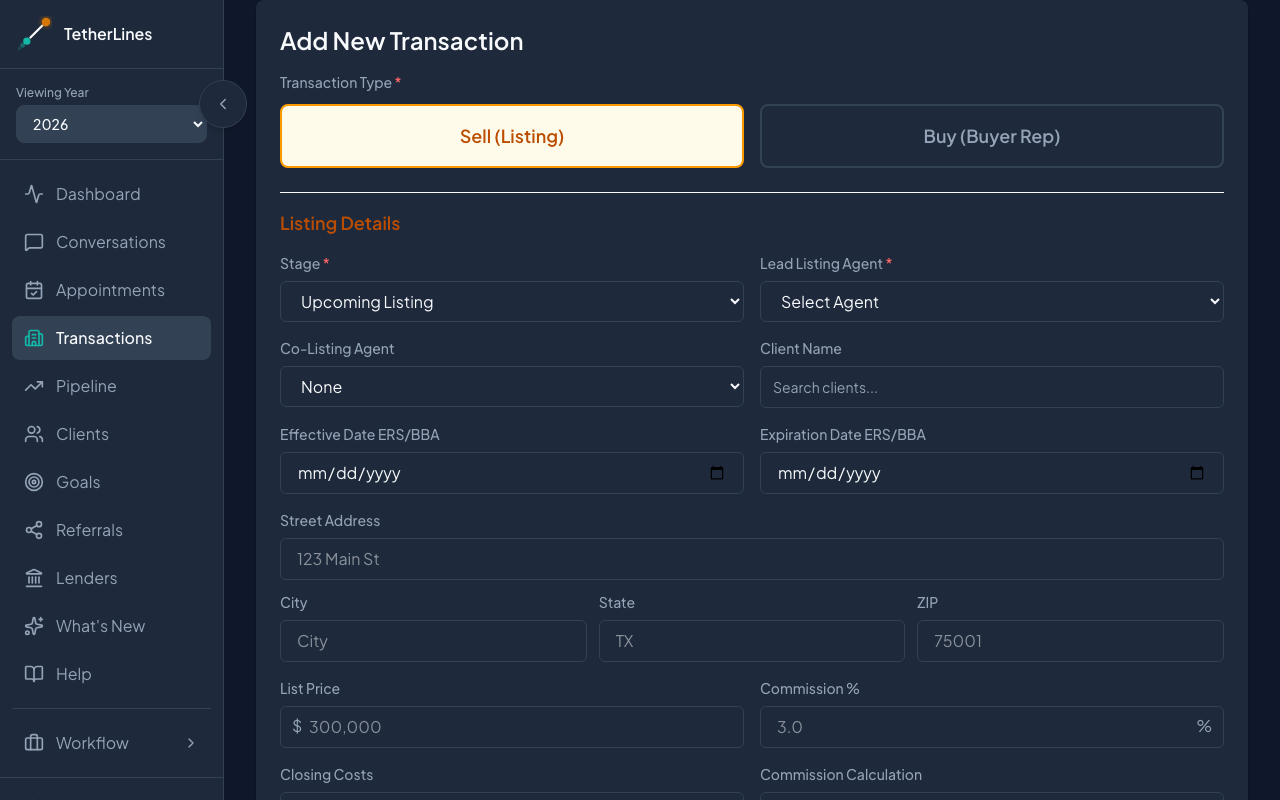 The Add New Transaction form with Sell (Listing) selected
Let the commission calculate
- Enter the Commission %. A Calculated Commission panel appears showing the dollar amount and the formula behind it.
- Keep Commission Calculation set to Gross (on full price) for most deals. Switch to Net (after closing costs) only when your commission is figured after closing costs — then add the Closing Costs amount.
The commission amount updates the moment you change the price or the percent. You don't enter the dollar figure by hand.
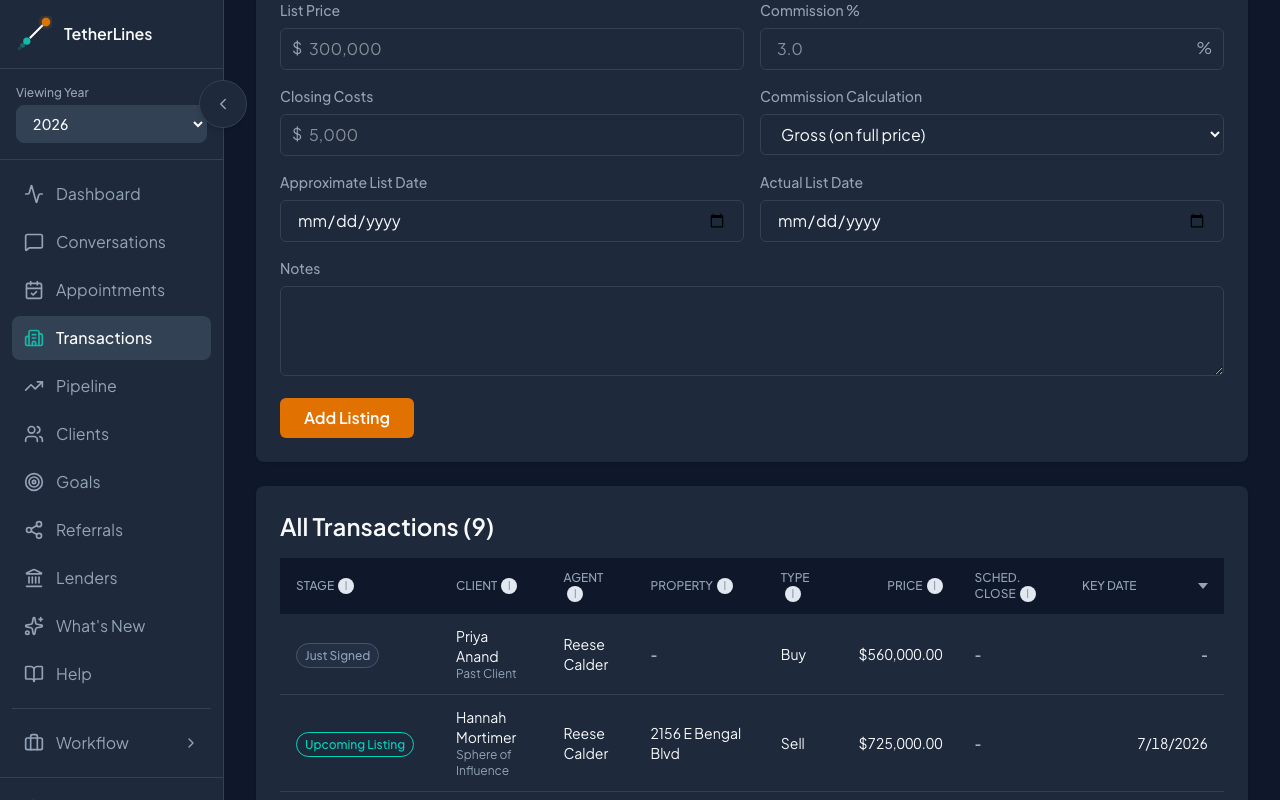 Commission fields — Commission %, Closing Costs, and the Gross or Net calculation method
Save and confirm
- Click Add Listing (sell) or Add Buyer Transaction (buy).
- A brief confirmation appears and the transaction shows up in the All Transactions list with its stage badge.
To adjust later, click the transaction in the list. Its detail panel opens with everything on record. Click Edit, change the price or percent, and click Save — the commission recalculates the same way, and the Pending Commission and Closed Commission totals at the top of the page follow (shown as Your Pending Commission and Your Closed Commission if you only see your own deals). The panel's Next Step section can also move the transaction to its next stage, asking only for the fields that stage needs.
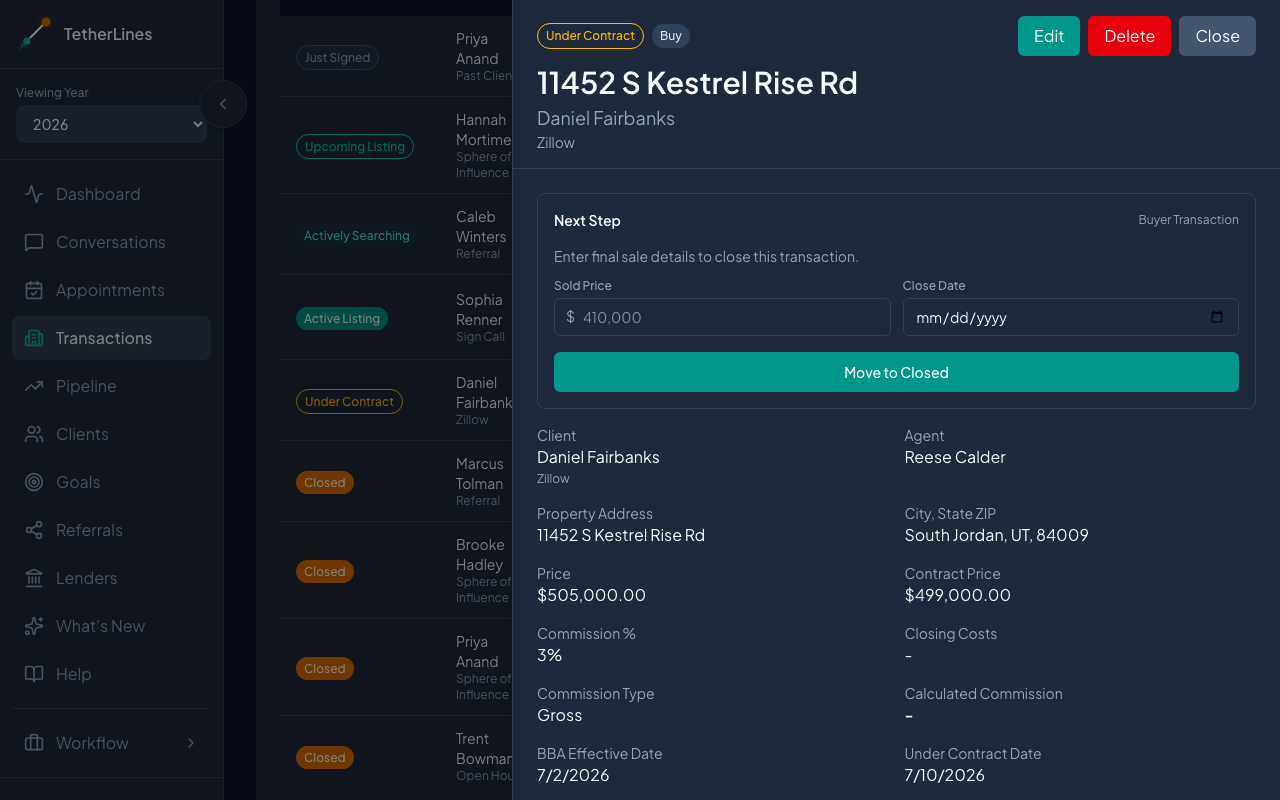 A transaction's detail panel — review, edit, or move it to the next stage
A few notes
- A transaction can't be moved to Closed without a close date — you're prompted to set one before the change saves.
- A sell deal records a Sold Price at close, which takes priority over the list price when commission is figured.
- Only one active buy or sell transaction can exist per client at a time. If one already exists, you're pointed to it instead of creating a duplicate.