Set goals and track your pace
Set annual or monthly targets, then read your pace on the Dashboard rings.
Goals set the targets that every progress ring on your Dashboard measures against. Set them once, update them anytime, and the Dashboard handles the rest.
Set a goal
- Open Goals from the sidebar.
- In the Set Goals section, choose the Agent and Year. If you are the only agent on the account, your name is already selected.
- Enter your targets in the fields you want to track. You can leave any field blank.
- Select Save Goal.
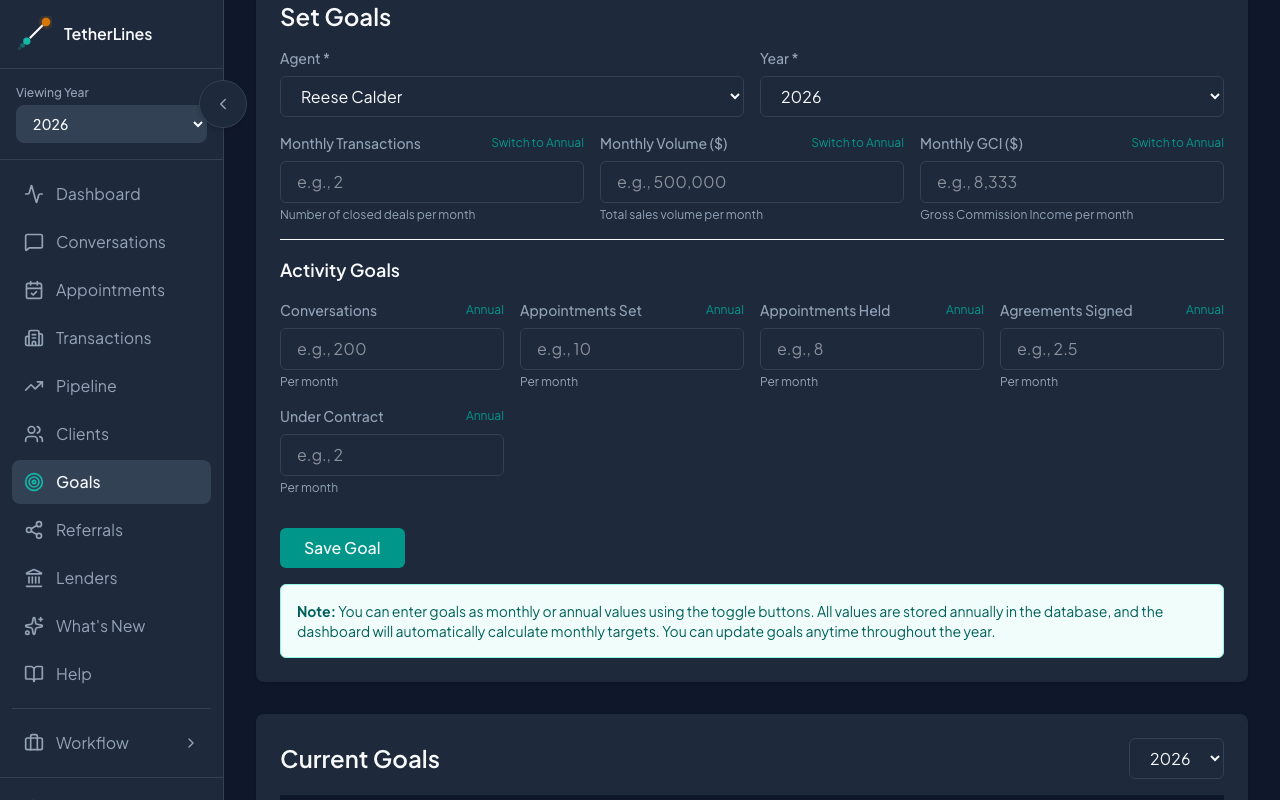 The Set Goals form — each target has its own monthly or annual toggle
You can set as many or as few targets as you like. A blank field simply means that ring has no target to measure against.
What you can set a target for
Each field has a toggle that switches between monthly and annual entry, and the field label flips to show which mode you are in. The main production targets use a Switch to Annual / Switch to Monthly button; the Activity Goals fields use a shorter Annual / Monthly button. Either way, enter the number however you think about it — TetherLines stores everything annually and works out the monthly target for you.
The main production targets:
- Transactions — number of closed deals; this drives the Closed ring on the Dashboard
- Volume ($) — total sales volume, shown as goal markers on the Dashboard's monthly volume chart
- GCI ($) — gross commission income (shows as Income if you do not have permission to view commissions)
Under Activity Goals, the leading-indicator targets:
- Conversations
- Appointments Set
- Appointments Held
- Agreements Signed
- Under Contract
If you are not sure what numbers to aim for, the Not sure where to start? section offers guided exercises that calculate goals for you, and the GPS and 4-1-1 tools help you turn annual targets into daily and weekly plans.
Edit a goal
- On Goals, scroll to Current Goals and pick the year from the selector.
- Select Edit on the row you want to change. The page scrolls back up to the form with those numbers filled in.
- Adjust the targets and select Save Goal.
Saving for an agent and year you already have a goal for updates it in place.
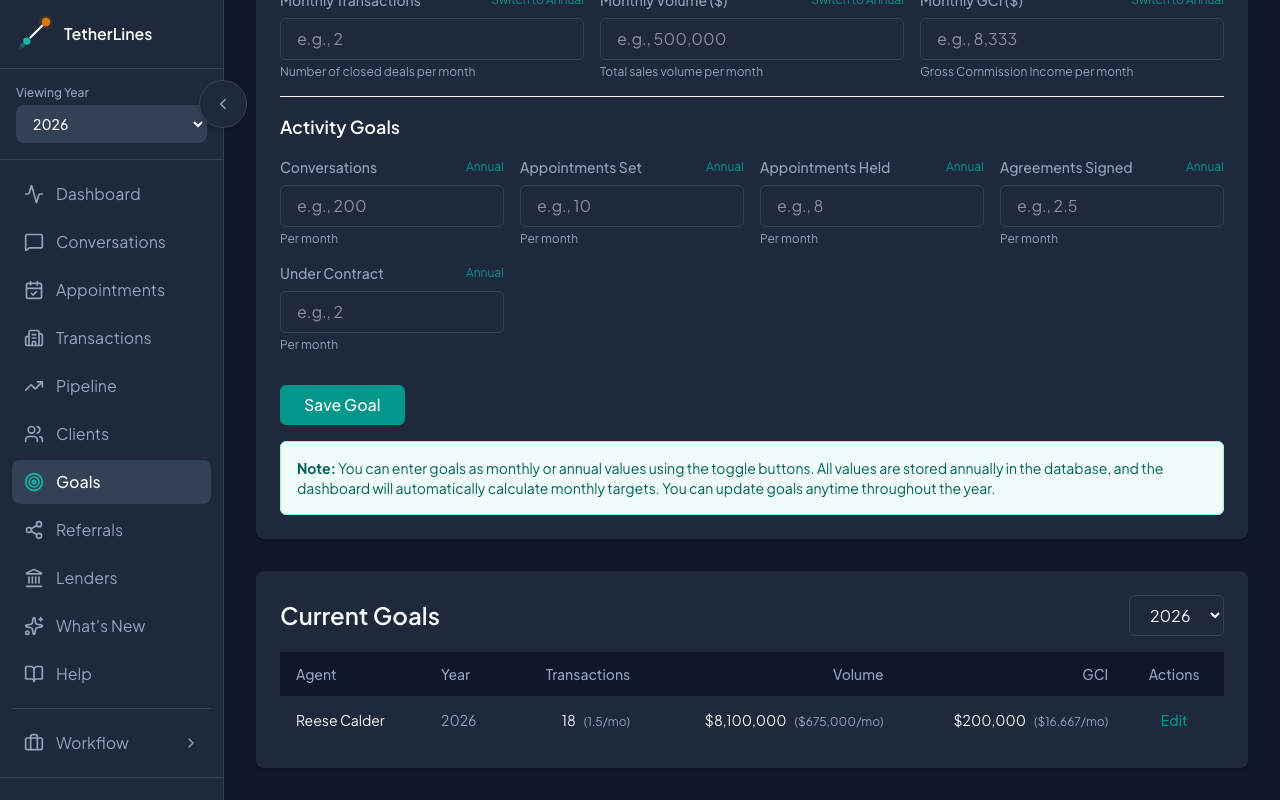 Current Goals lists each saved goal with its monthly equivalent
Read your pace on the Dashboard
Once a goal is saved, the matching ring in the Dashboard's KPIs section fills in as you log activity and close deals — Conversations, Appointments Set, Appointments Held, Agreements Signed, Under Contract, Closed, and GCI. Beneath each ring, the legend shows Actual, Pace, and Goal. The inner pace line marks where you should be by today, given the time elapsed in the period.
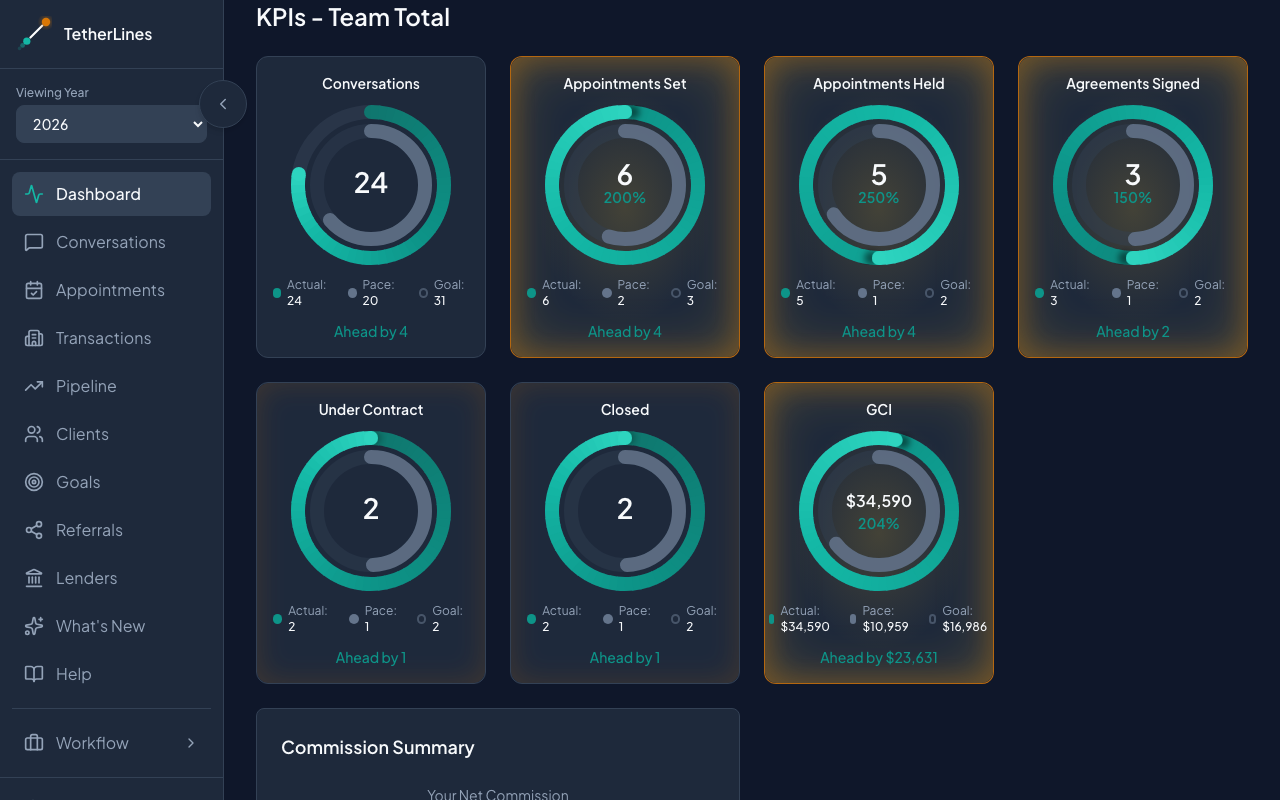 KPI rings on the Dashboard — the inner line marks pace, and the status below reads the gap
Below each ring you will see one of these:
- Ahead by N — you are past where pace expects you to be
- On pace — you are right where you should be
- On pace, slipping — still on pace, but the target is creeping ahead; a quiet early heads-up
- The gap is N — you are behind pace, and N is how far
For GCI the same wording applies with a dollar figure, for example Ahead by $12,000 or The gap is $4,500. GCI shows On pace rather than On pace, slipping when the cushion is thin. The Volume goal does not have a ring — it appears as gold goal markers on the Volume by Month chart further down the Dashboard.
The idea is steady visibility, not pressure. A small gap caught early is a small correction. Check in, see where the line sits, and adjust while it is still easy.