Log your conversations
Enter each day's real estate conversations once a week, and let the Conversations ring show whether you are on pace.
Conversations are the first number TetherLines tracks, and the one most within your control. Appointments, agreements, and closings all trail behind them by weeks or months, so a quiet week of conversations shows up on the Dashboard long before it shows up in your income. Logging them takes a minute, once a week.
Why conversations come first
Every other metric on the Dashboard is a result. Conversations are the input. When the Conversations ring drifts behind pace, the fix is small and immediate: a few more calls this week. When the Closed ring drifts, the cause is usually a conversation gap from two months ago. Tracking the leading indicator lets you correct while the correction is still small.
Log a week
- Open Conversations from the sidebar.
- If you lead a team, use Select Agent to choose whose week you are logging. The page opens on your own log.
- Under Select Week, use the arrows to move between months, then select any day. The whole week, Sunday through Saturday, is highlighted, and the Selected line beneath the calendar confirms the range. The current week is selected when the page opens.
- Enter the number of real estate conversations you had in the field under each day, Sun through Sat. The date sits beneath each label, and Weekly Total adds the days up as you type.
- Select Save Week. A Week saved. confirmation appears right away, and the button reads Saving... until the save finishes. If the save fails, an error message appears and the fields revert.
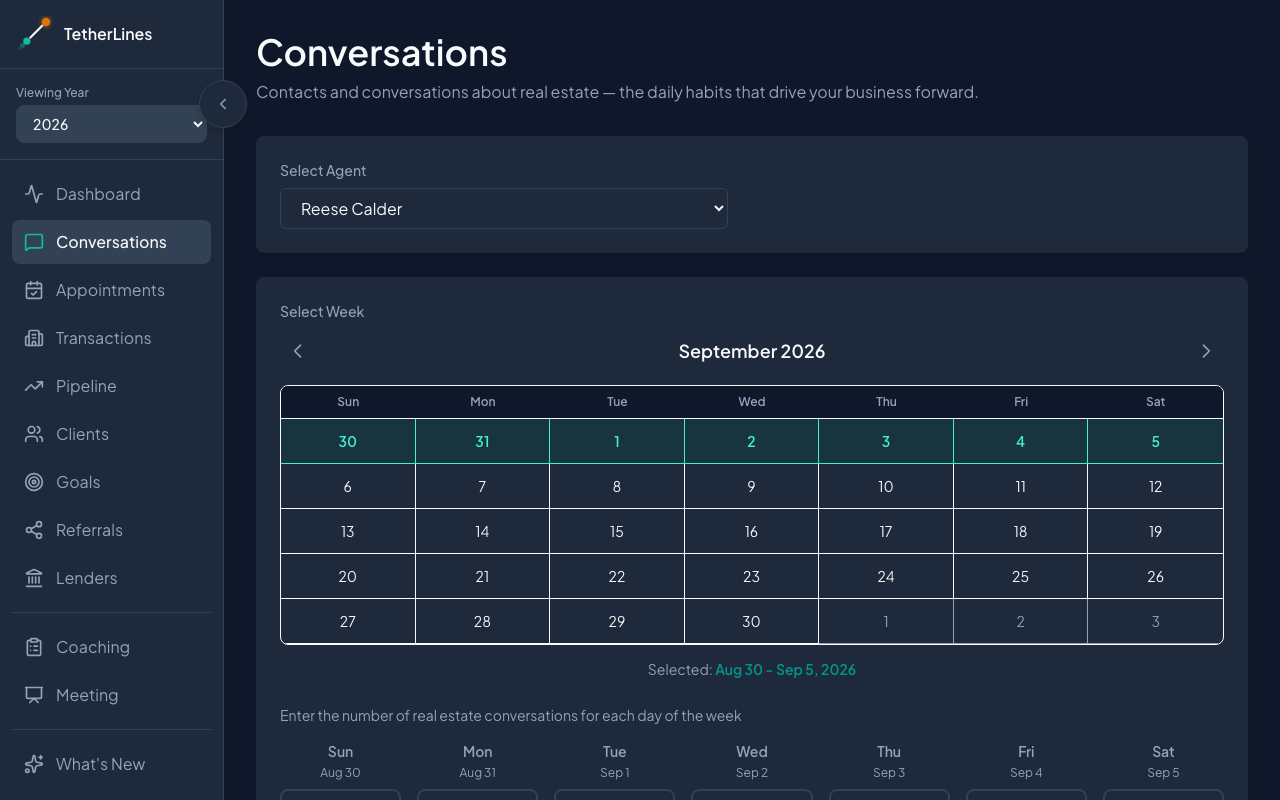 The Conversations page: pick the week, enter each day's count, then Save Week
You can leave days blank. Only the days you fill in are saved, so you can log part of a week and come back for the rest. If every field is empty, the page asks for at least one count before it saves.
Each saved day appears under Conversation History at the bottom of the page, newest first, with its count and agent.
Edit an earlier week
- On Conversations, use the calendar arrows to go back to the month you need and select a day in that week.
- The seven fields fill in with whatever was saved for those days.
- Change any count and select Save Week.
Saving replaces the earlier number for that day. A saved day cannot be removed, so if you logged the wrong day, correct its count and save again. Blank fields are left as they were, so you only need to touch the days that changed.
See it on the Dashboard
Once a week is saved, open Dashboard. In the KPIs section, the Conversations ring fills toward your goal, and the legend beneath it shows Actual, Pace, and Goal. The inner pace line marks where you should be by today, and the status below reads the gap: Ahead by N, On pace, On pace, slipping, or The gap is N.
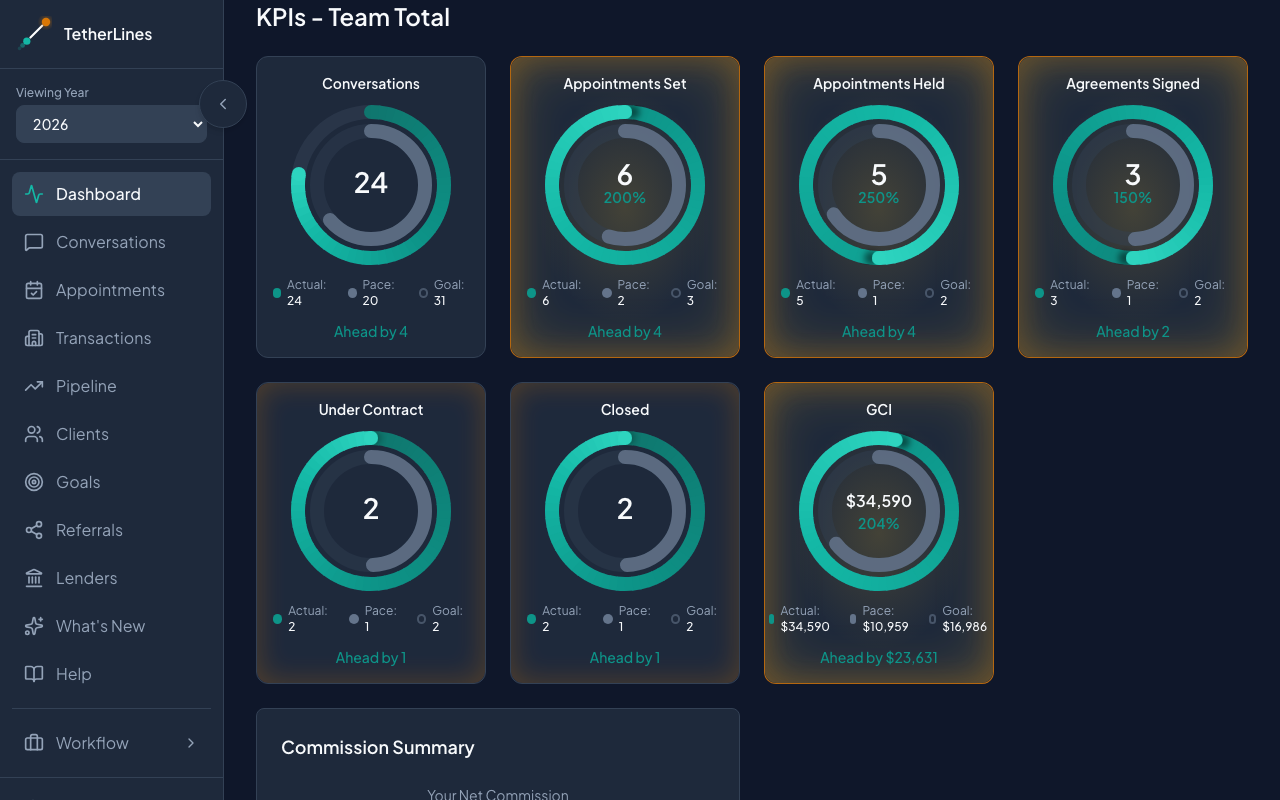 Saved conversations fill the Conversations ring on the Dashboard
The Time Range control at the top of the Dashboard sets the window the ring measures: Year to Date, This Month, a quarter, a single month, or a custom range. Further down, the Annual Goal Tracker breaks conversations out month by month alongside the rest of your metrics.
Set the target
The ring measures against the Weekly conversations target you entered during account setup. To change it:
- Open Goals from the sidebar.
- In the Set Goals form, choose the Agent and Year.
- Under Activity Goals, enter a new number in Conversations. The Annual / Monthly button switches how you enter it; TetherLines stores the annual figure and works out the rest.
- Select Save Goal.
Team leaders set a target for each member by choosing that member as the Agent in the form. For the full walkthrough, see Set goals and track your pace.
Where to go next
- Schedule an appointment when a conversation turns into a meeting.
- Add a client and tag the source so you know where your conversations are coming from.
- Install TetherLines on your phone to log the week from wherever you end it.