Schedule an appointment
Create an appointment linked to one or more clients and track it from your appointment list.
Appointments link a meeting to one or more clients. Once saved, the appointment shows in your list with a Scheduled status and counts toward the appointment KPI on your Dashboard.
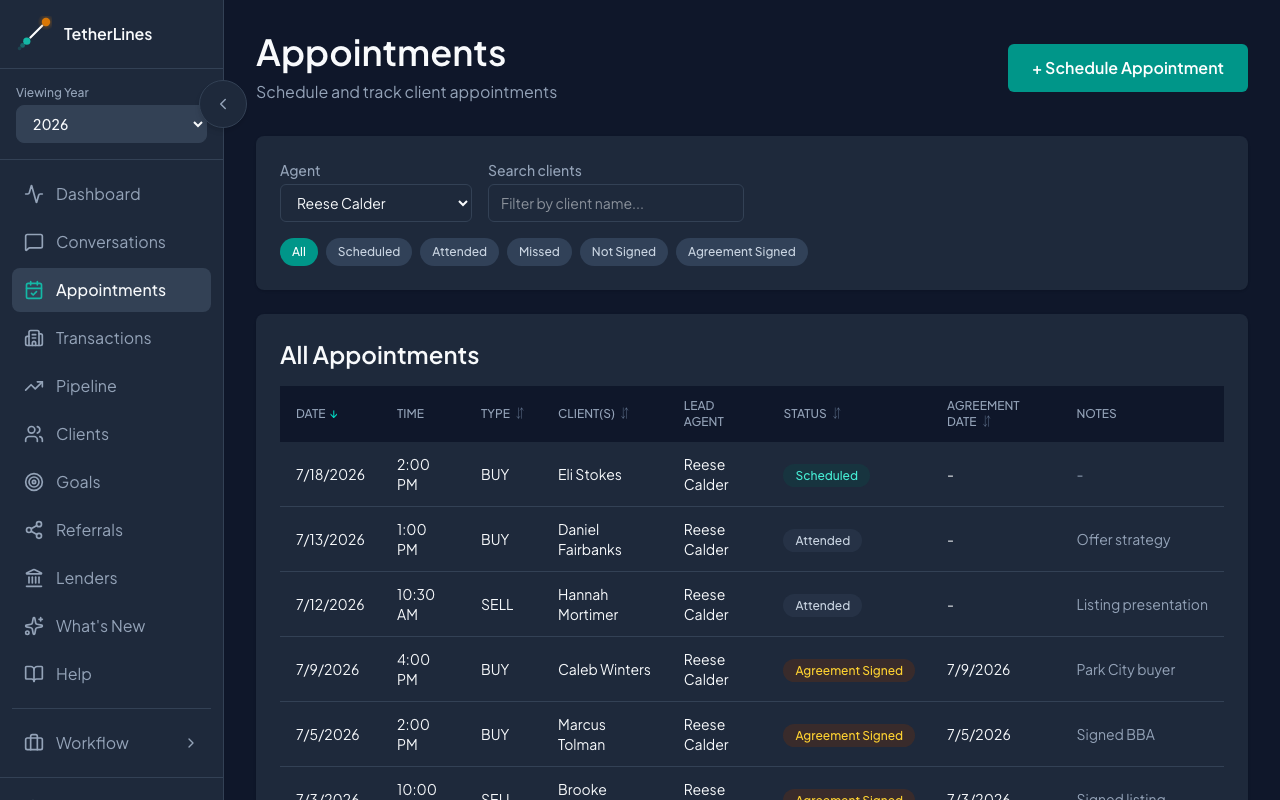 The Appointments page with the All Appointments list
Create an appointment
- Open Appointments from the sidebar.
- Select + Schedule Appointment in the top right. The Schedule New Appointment form opens.
- Under Client(s), type to search and select one or more clients. For couples or partners, select both people.
- Check Appointment set by. This fills in automatically from the selected client's agent. Use the dropdown to change the agent if needed.
- Set the Type (Buy, Sell, or Buy & Sell), the Date, and the Time.
- Select Schedule Appointment to save.
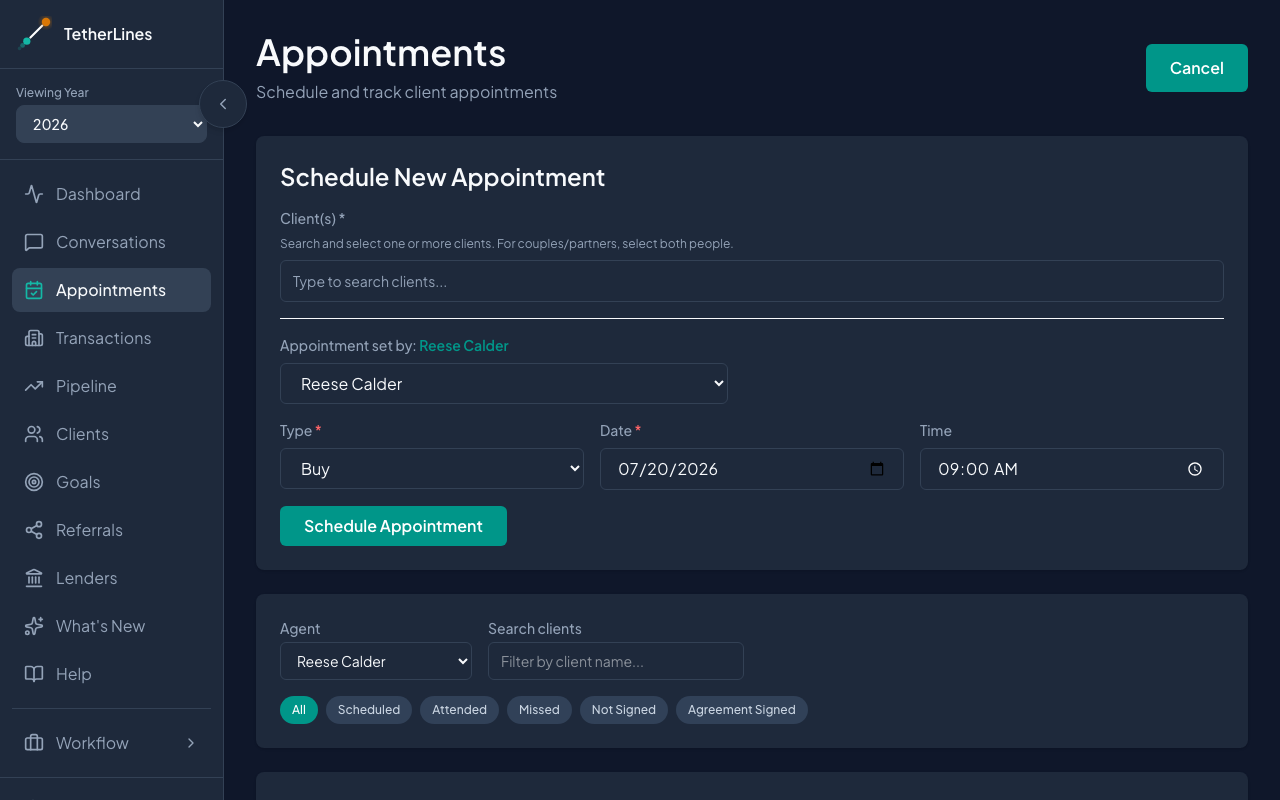 The Schedule New Appointment form
You'll see a brief "Appointment scheduled." confirmation, and the new appointment appears in All Appointments with a Scheduled status, in date order.
What happens next
The appointment is now linked to the client and counts toward the appointment KPI on your Dashboard.
To update it later, select the appointment row. The Update Appointment window opens. Under Mark as:, choose Attended, Agreement Signed, or Missed, then select Save to confirm — nothing is recorded until you save. Choosing Agreement Signed also asks for the Date Signed and creates a new transaction in the Just Signed stage.
To change the appointment itself, select Edit Details to update the clients, type, agent, date, or time.
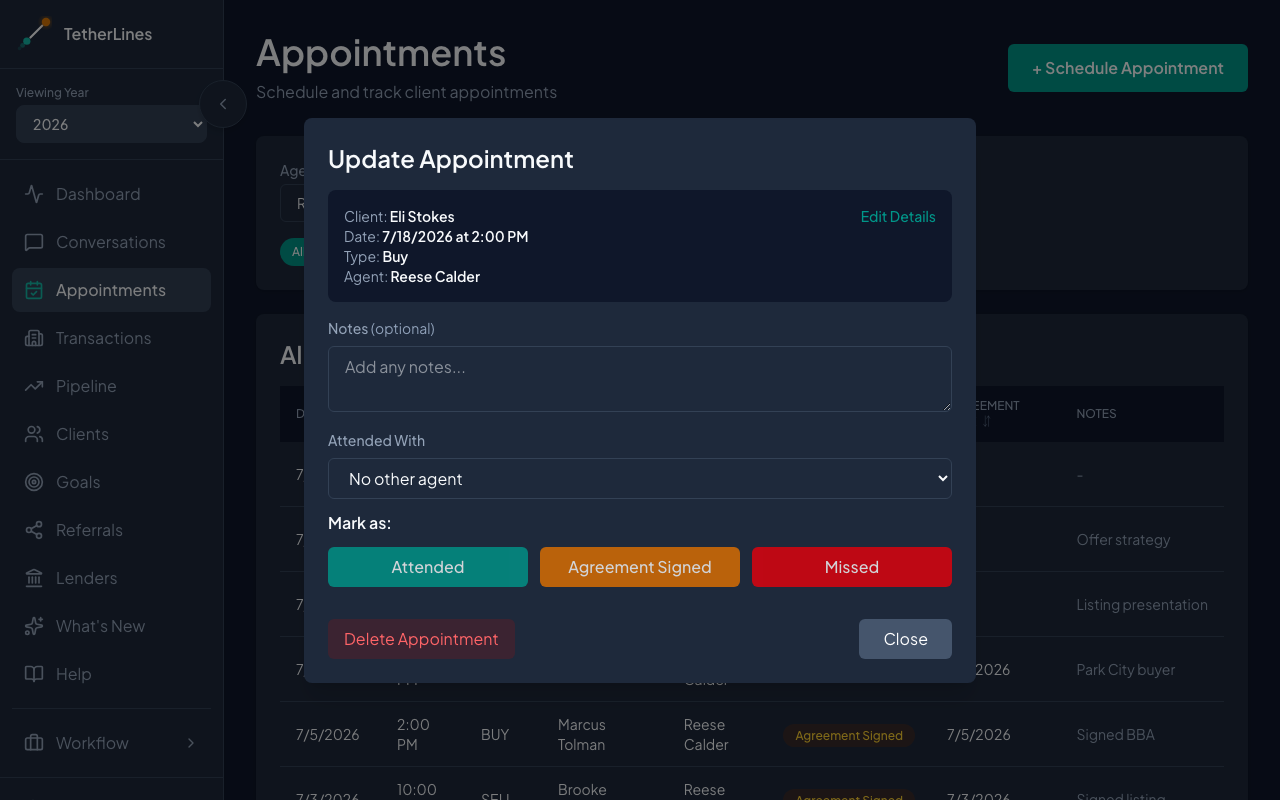 The Update Appointment window for a scheduled appointment
Find an appointment
Use the filters above the list to narrow it down: pick an Agent, type a name in Search clients, or select a status chip such as Scheduled or Agreement Signed. Column headers like Date, Type, and Status sort the list.
Notes
- Client(s) is required. If no client is selected, the form asks you to select at least one before saving.
- If you started adding a new client but didn't finish, save it with Add & Select Client or close the new-client form before scheduling.
- Time is optional. It starts at 9:00 AM; clear it if the time isn't set yet.