Move a client through your pipeline
Add a pipeline opportunity, link it to a client, and move it through follow-up stages.
The Pipeline tracks early-stage opportunities by follow-up timeline. Each opportunity is linked to a client and moves between stages as your follow-up window changes. When an opportunity is ready to become a deal, you start a transaction from it.
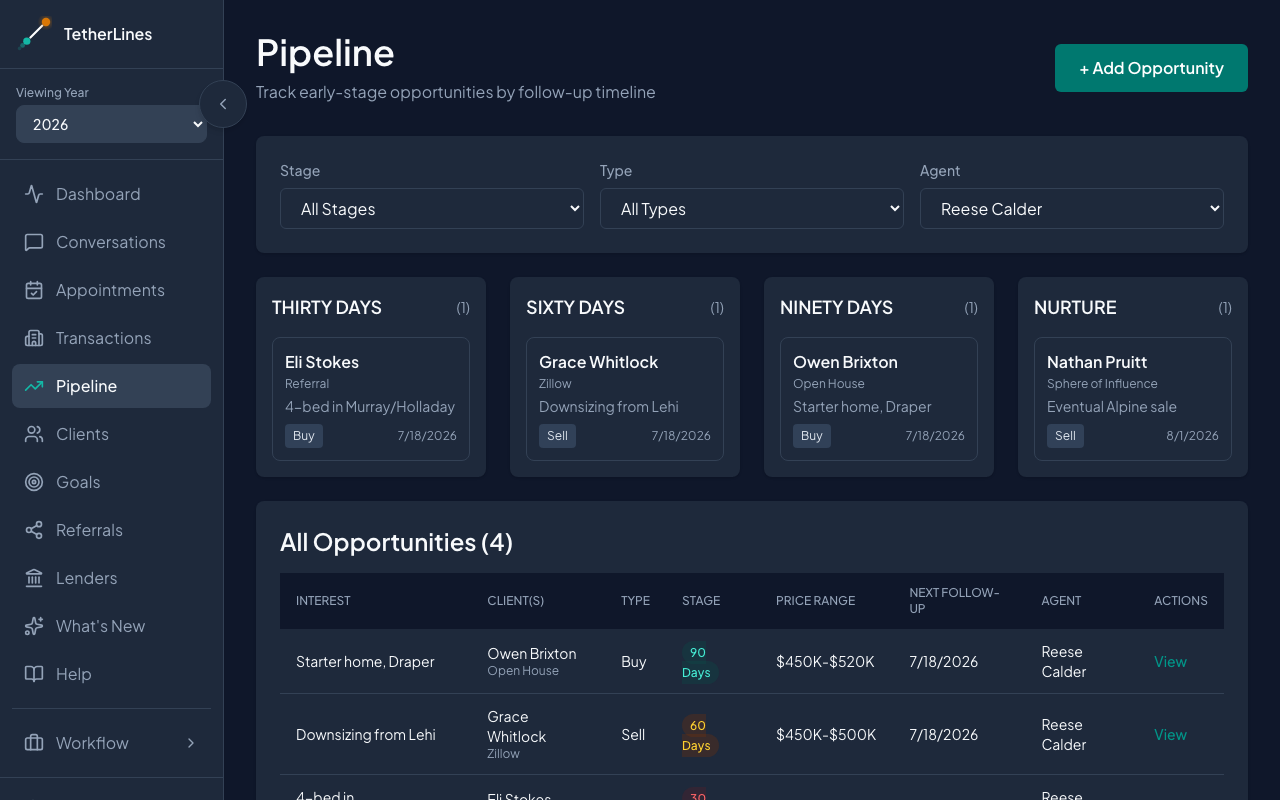 The Pipeline board groups opportunities into four follow-up stages, with the All Opportunities list below.
Add an opportunity
- In the sidebar, go to Pipeline.
- Select + Add Opportunity. The Add New Opportunity form opens.
- Set Type (Buy, Sell, or Buy/Sell).
- Set the initial Stage: 30 Days, 60 Days, 90 Days, or Nurture. This reflects when you expect to follow up, not deal status.
- Choose the Agent (required).
- Under Client(s), search for and select one or more existing clients. To create one on the spot, select + Add new client in the dropdown, fill in their details, and select Add & Select Client.
- Optionally fill in Property Interest, Budget, Last Contact Date, Next Follow-Up, and Notes.
- Select Add Opportunity to save.
The opportunity now appears on the board and in the All Opportunities list.
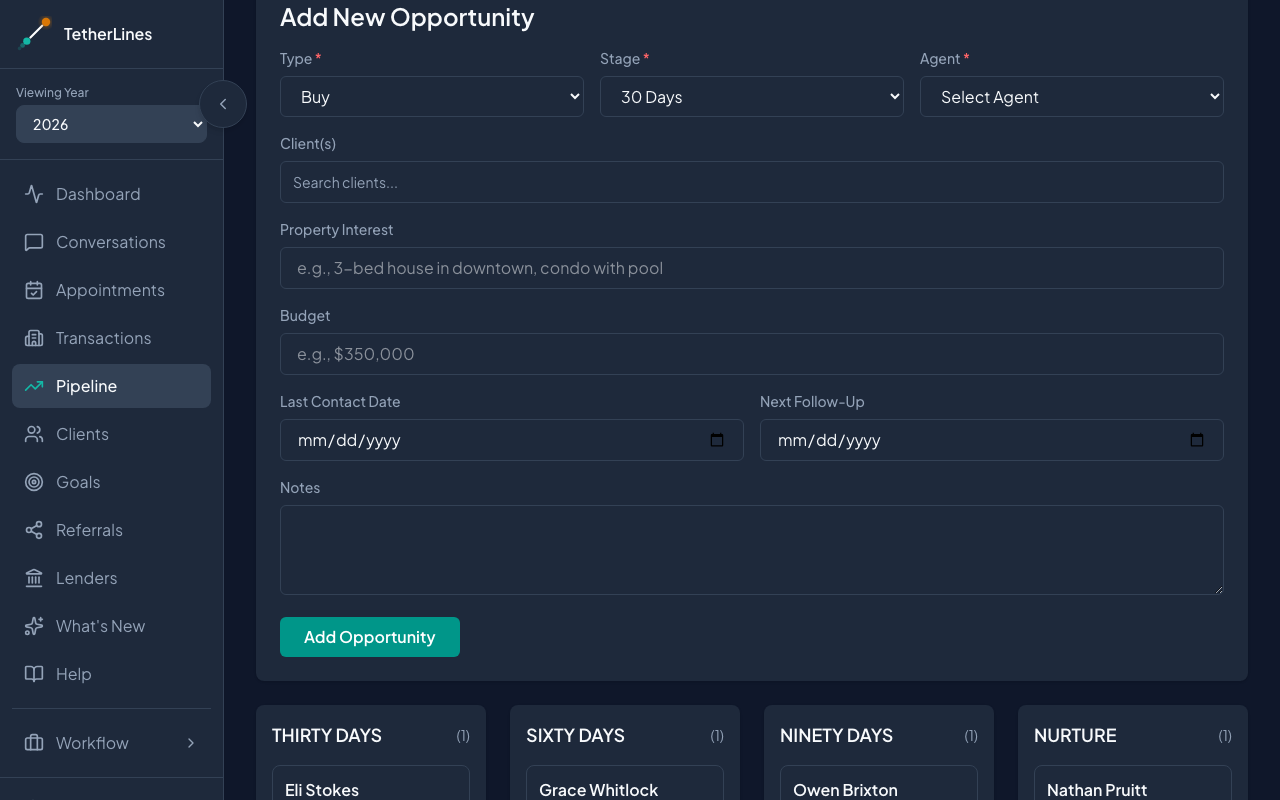 The Add New Opportunity form: Type, Stage, and Agent, plus client links and follow-up dates.
Move it through stages
The four stages are follow-up timelines, not deal phases:
- 30 Days — expect to follow up within a month
- 60 Days — follow up within two months
- 90 Days — follow up within three months
- Nurture — longer-term, stay in touch
To change the stage:
- Select an opportunity card on the board, or select View in the list.
- Select Edit.
- Change Stage (and any other details).
- Select Save.
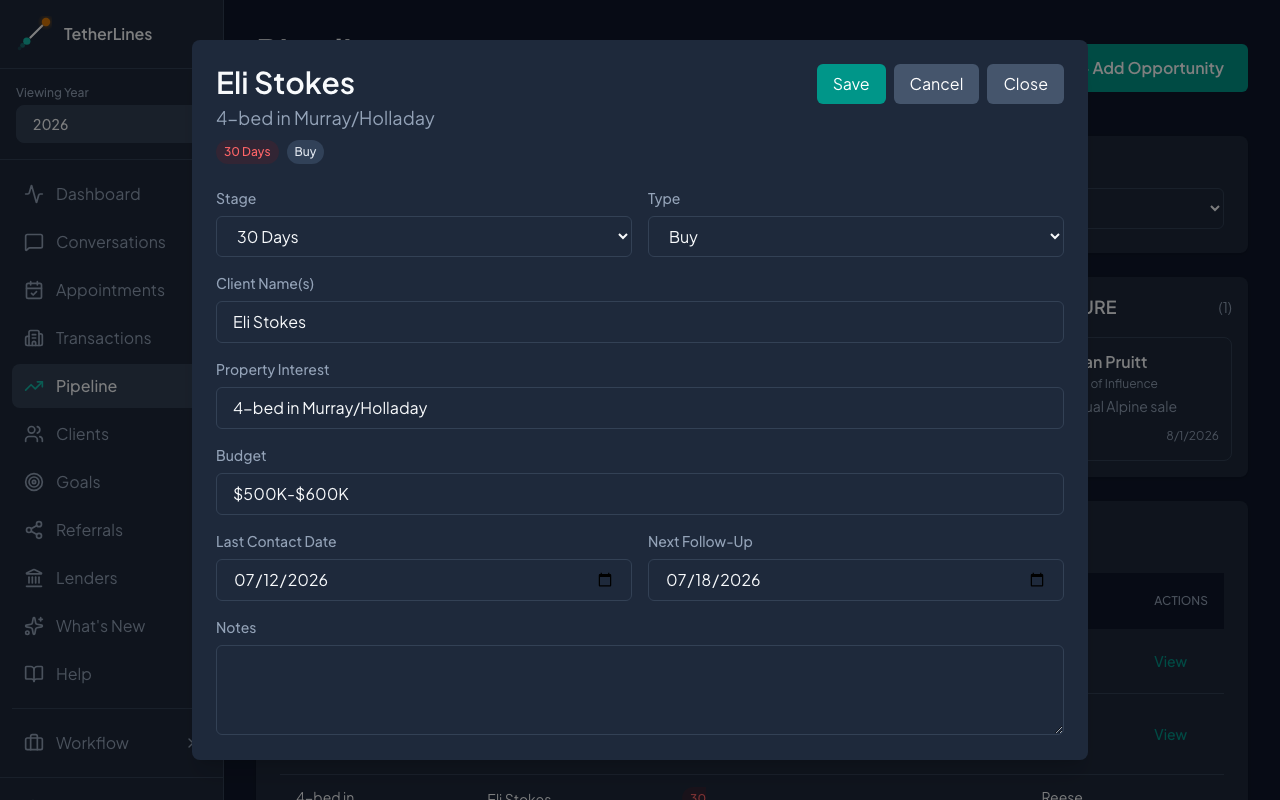 Editing an opportunity: change the Stage and select Save.
You can filter both the board and the list by Stage, Type, or Agent using the controls at the top.
To remove an opportunity without converting it, open it and select Delete, then confirm with Remove. You can add it back later.
Convert an opportunity to a transaction
When a client moves to active or under contract, turn the opportunity into a deal:
- Open the opportunity and select Start Transaction.
- The form starts from the opportunity — the client, type, source, and notes carry over. Fill in the remaining transaction details and select Create Transaction.
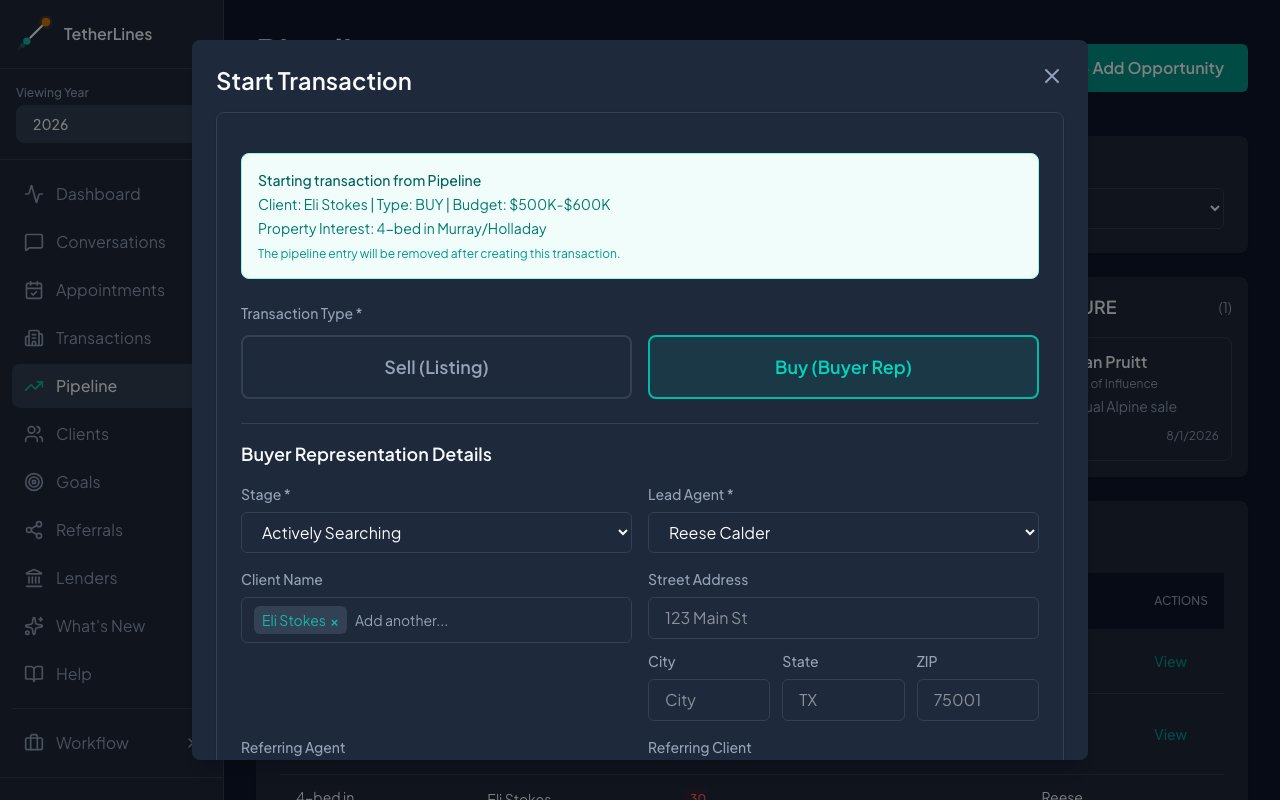 The Start Transaction form, pre-filled from the opportunity.
The opportunity is removed from the Pipeline once the transaction is created, so it lives in Transactions from that point on.
What updates elsewhere
Stage changes are reflected on the board counts and the All Opportunities list right away. The Pipeline only holds early-stage opportunities; active and closed deals show in Transactions, and overall progress shows on your Dashboard.